A step-by-step example: dinner ready at 7:00
Plan a meal is for getting several dishes ready at the same time. Tell the app when you want to eat and what you are cooking, and it works out when each timer needs to start, with a warning beforehand. It is a Pro feature. This guide plans a weeknight dinner of chicken, rice and green beans.
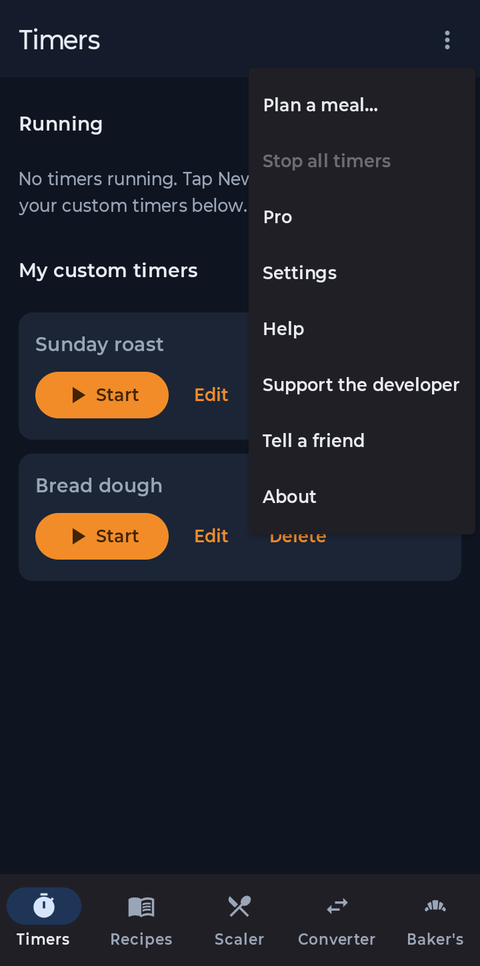
On the Timers tab, open the menu at the top right and choose Plan a meal.
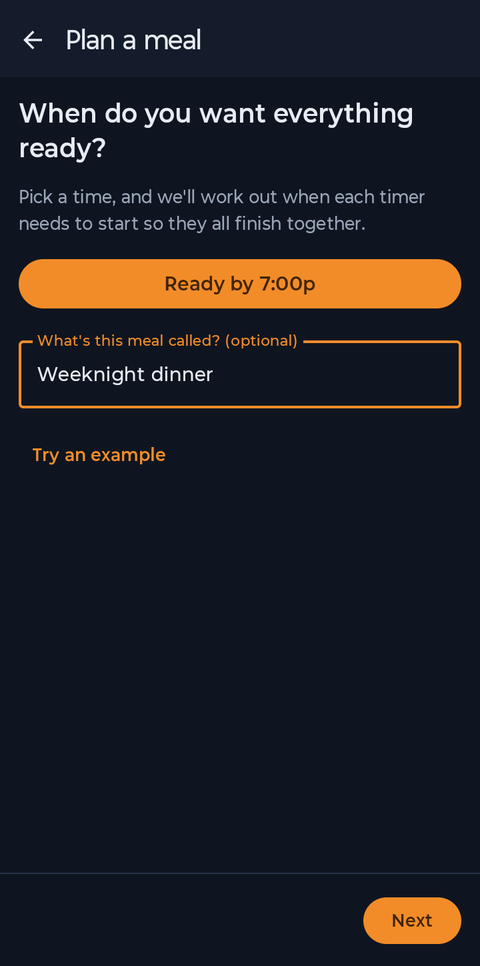
Tap the time button and choose when you want everything ready, here 7:00 PM. Give the meal a name if you like, then tap Next.
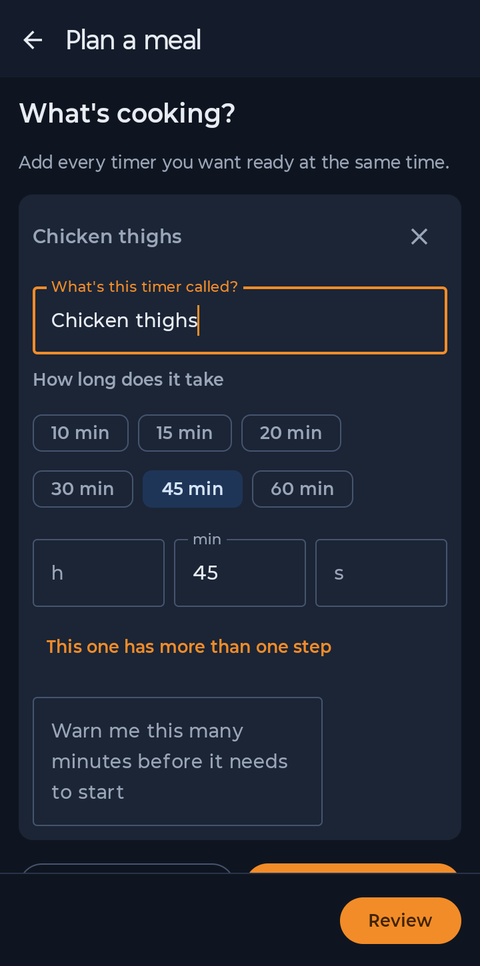
Tap Add timer, name it and say how long it takes, here Chicken thighs, 45 min. Add the rice (20 min) and the green beans (10 min) the same way. You can also use a saved custom timer or a recipe's own timer. Each timer is warned about 10 minutes before it needs to start; change that for any one of them.
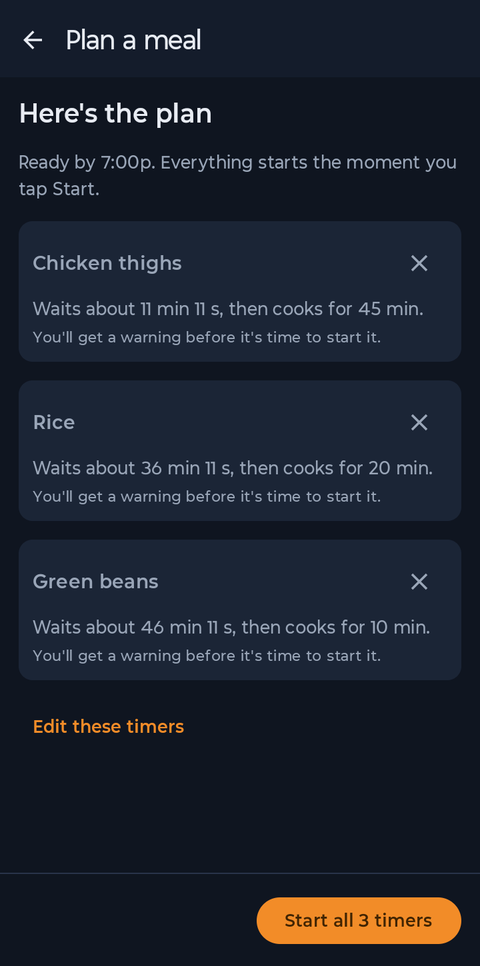
The plan shows how long each timer will wait before it starts: the longest dish starts first and the shortest last, so all three finish at 7:00. Tap Start all 3 timers and confirm.
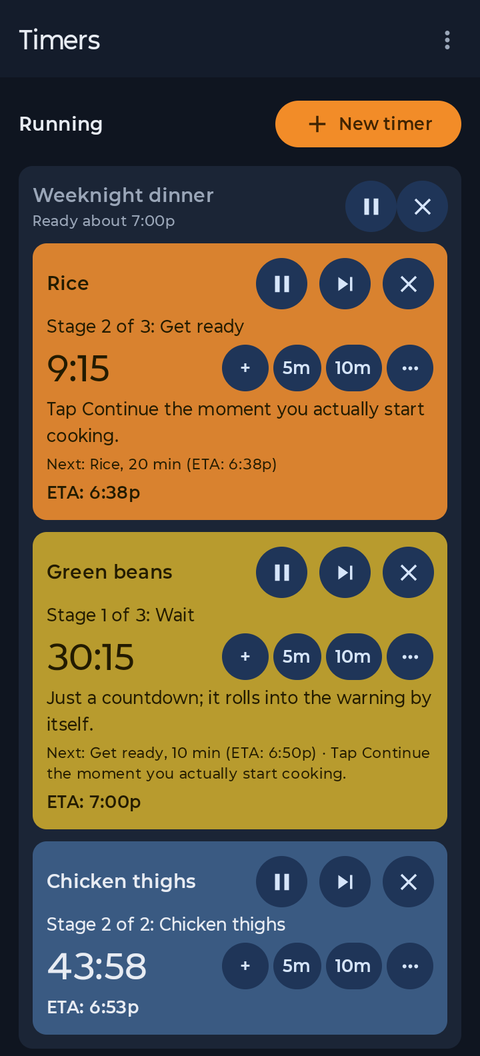
The timers sit together as one plan, colored by what each is doing: yellow while it waits, orange during the warning and blue once it is cooking. When a warning rings, put the dish on and tap Continue (or the skip button on the card) the moment you start, so the countdown is never wrong. Use Pause all or Cancel all to stop the whole plan at once.
Times in the app are guides. Check that food is cooked safely.