
Stowed User Manual, chapter 7 of 11
← History, contacts, reminders and custom fieldsContentsBackup and restore →
Stowed has several layers. They do different jobs, so it helps to know which is which.
Your data and photos are always encrypted on the phone, whether or not you set anything up. This protects the files if someone gets the phone's storage but not the phone itself.
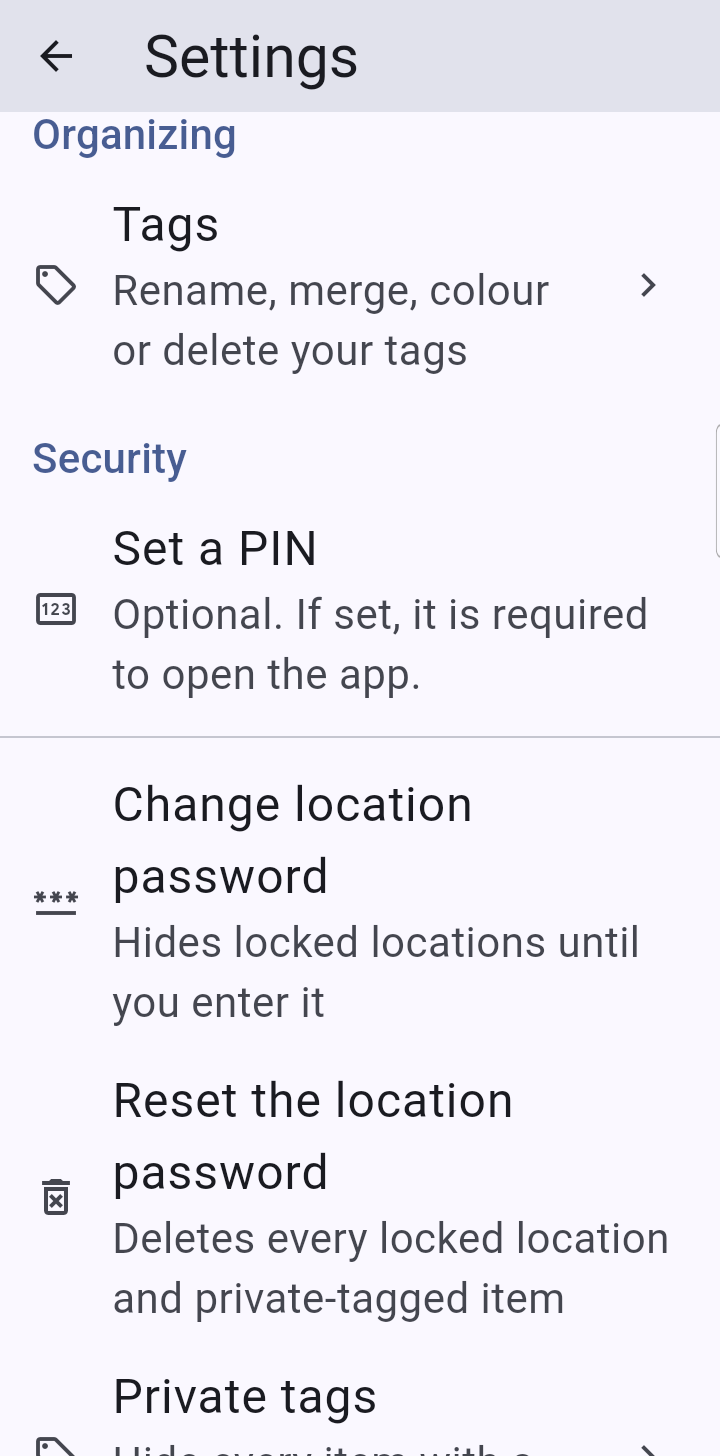
In Settings you can set an optional PIN (or a longer password) that is required to open the app. You choose whether it is asked for only when the app starts or every time you come back to it. You can also tie the encryption to it, so that the app cannot even open its database without it; in that case a recovery key is shown once, and you must keep it.
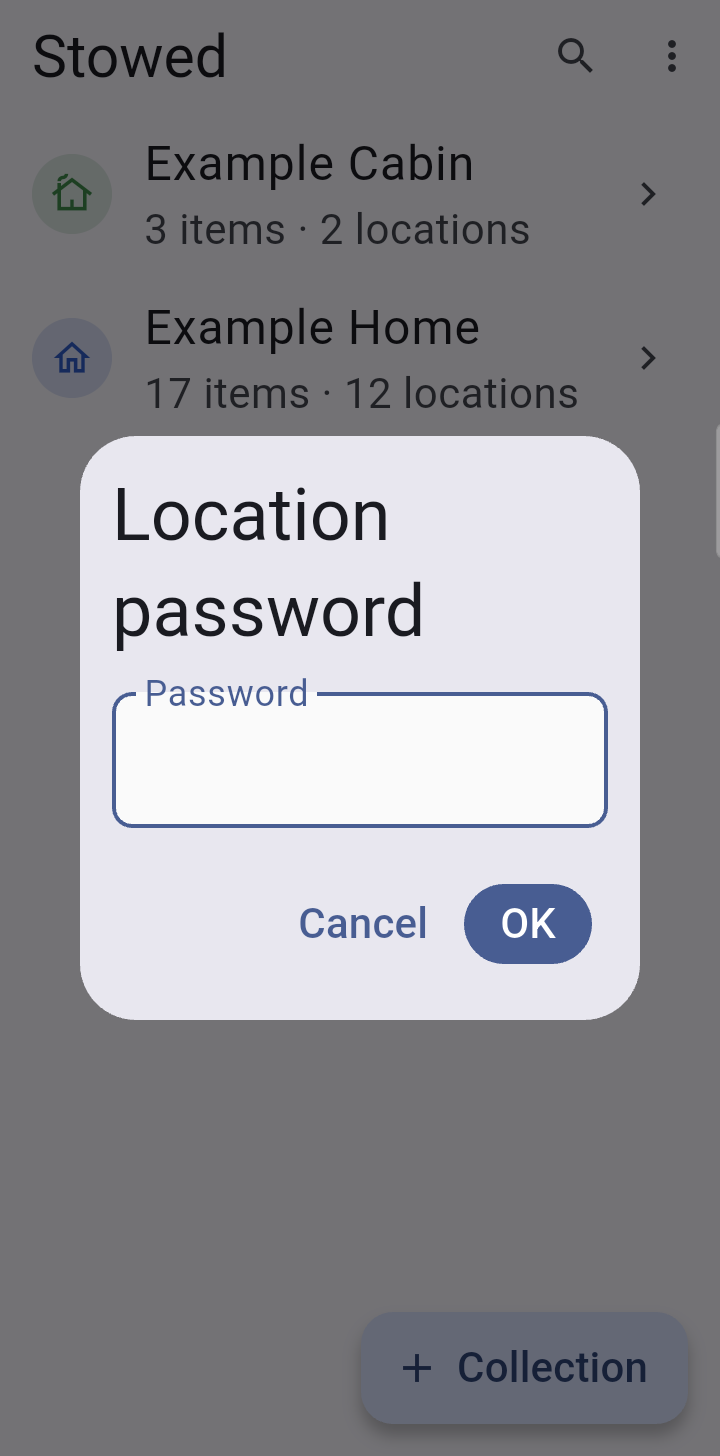
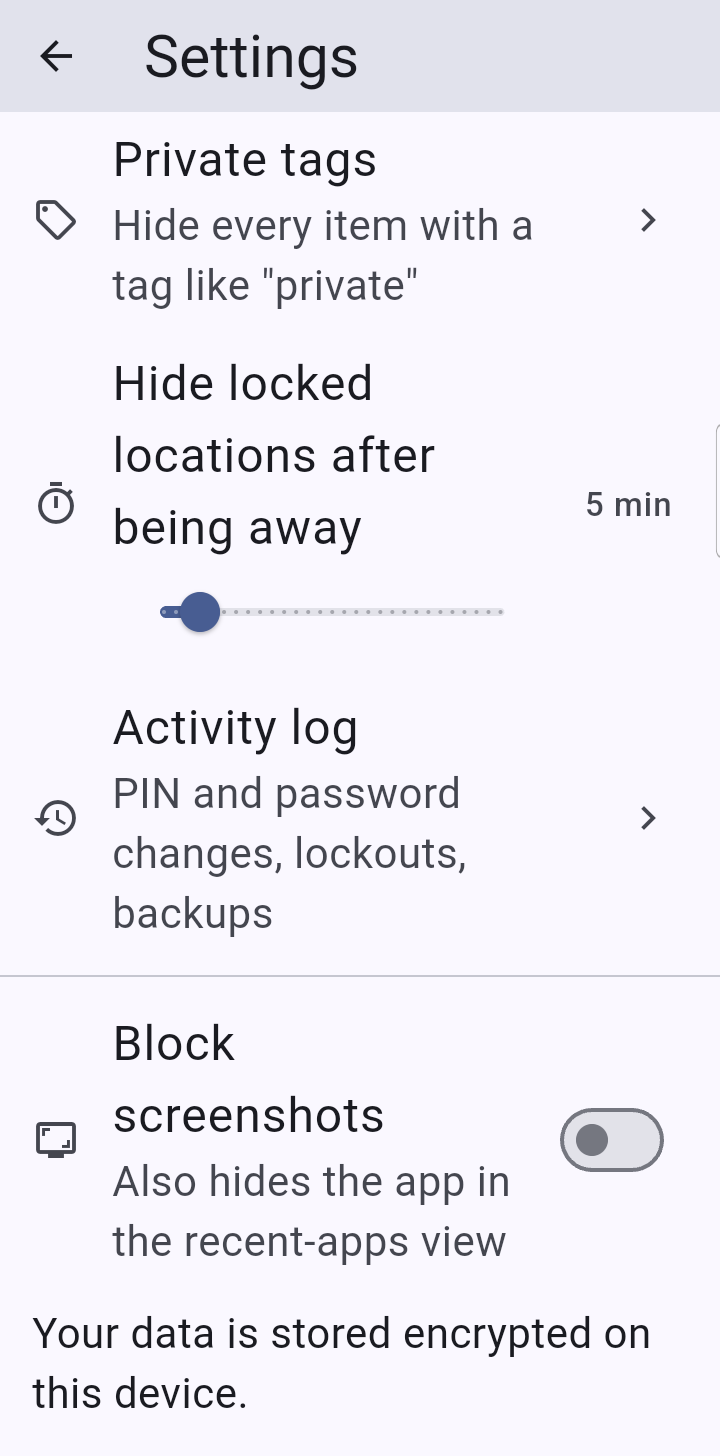
Use Lock in a place's edit sheet (press and hold a location or collection, or use Edit this place…) to hide it. A locked place, with everything inside it, disappears from lists, counts, totals, search, reports, reminders and pickers until you choose Show locked locations in the home menu and enter the location password. They hide again when you leave the app for the time you choose, from 2 to 30 minutes.
The home menu always has the Show locked locations entry, whether or not you have locked anything, so it never gives away that something is locked.
A lock is a screen, not a safe. It keeps ordinary users from browsing what you have hidden. It does not encrypt that data separately from everything else, and it is not part of a backup file: a backup contains your locked items like any others. To protect a backup, give it a password (see Backup and restore).
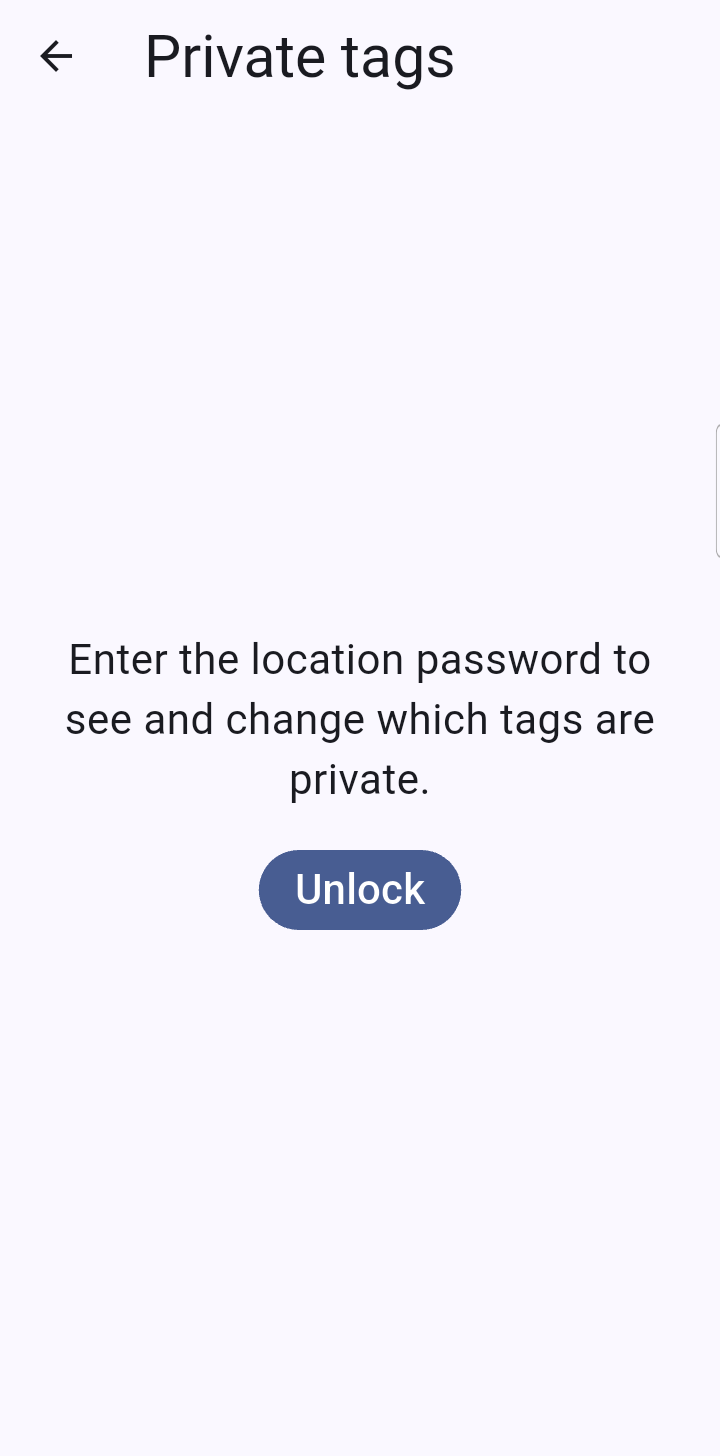
In Settings > Security > Private tags (it asks for the location password) you can mark a tag such as “private” as private. Any item with that tag is hidden everywhere, wherever it is kept, until you show locked locations, and the private tag itself, with its count, is hidden too. This is how you hide a few items in a room that is otherwise open. You can only give an item a private tag while locked places are showing. Merging a private tag into another tag keeps the result private.
With no location password set, nothing is hidden at all: a lock can never outlive its password.
A forgotten location password can only be reset, and resetting deletes every locked location and collection (with their items, photos and files) and every item that carries a private tag. You must type DELETE to confirm, and the dialog says how many private items will go. If you have a recent backup, those items can be brought back afterwards (see Backup and restore).
Settings also has an activity log of security events (it records that something happened, never what was in it) and an option to block screenshots, which also hides the app in the recent-apps view.
← History, contacts, reminders and custom fieldsContentsBackup and restore →