A backup is one file with everything in it. You choose whether to protect it with a password, where to keep it, and, when you restore, exactly how much of it to bring back.
This chapter explains each choice, in particular what a password does and what happens to your locked and private items.
What is in a backup
Everything you entered: collections, locations, categories, items, serial numbers, photos and pictures of places, log entries and their attachments, files, contacts, custom fields and values, tags,
and which places are locked and which tags are private.
A backup does not include your PIN, your location password, the activity log, your settings, or your Pro purchase. Pro belongs to your Google account:
on a new phone open Stowed Pro and tap Restore purchase.
Making a backup
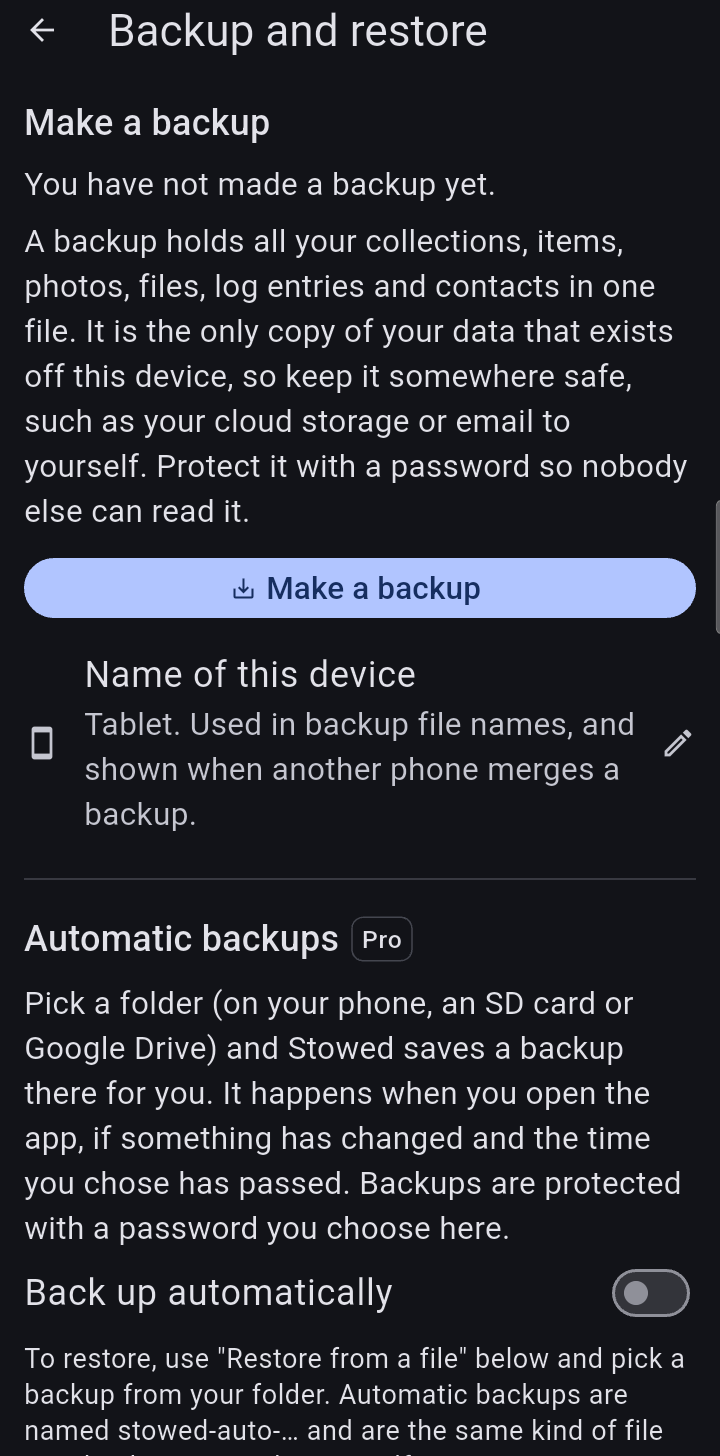
Open the home menu > Backup and restore > Make a backup.
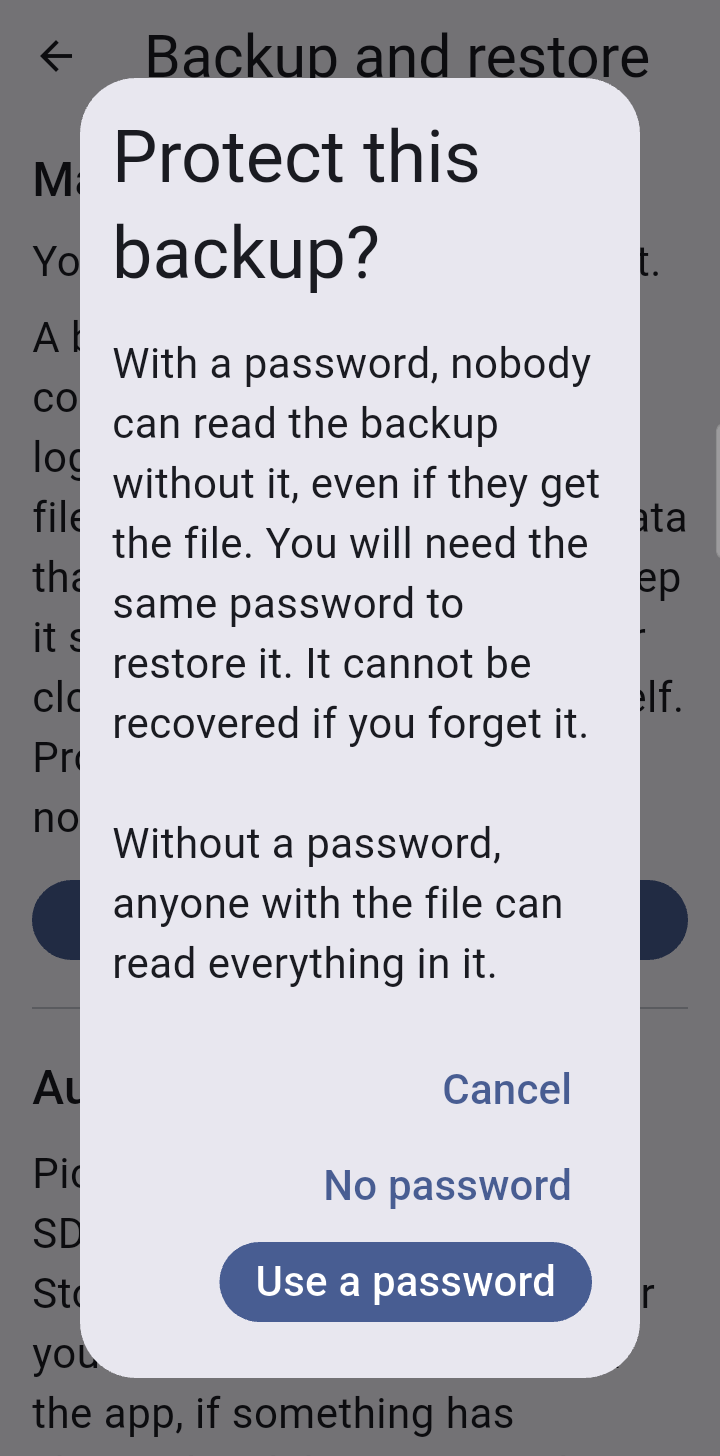
Choose Use a password or No password (explained below).
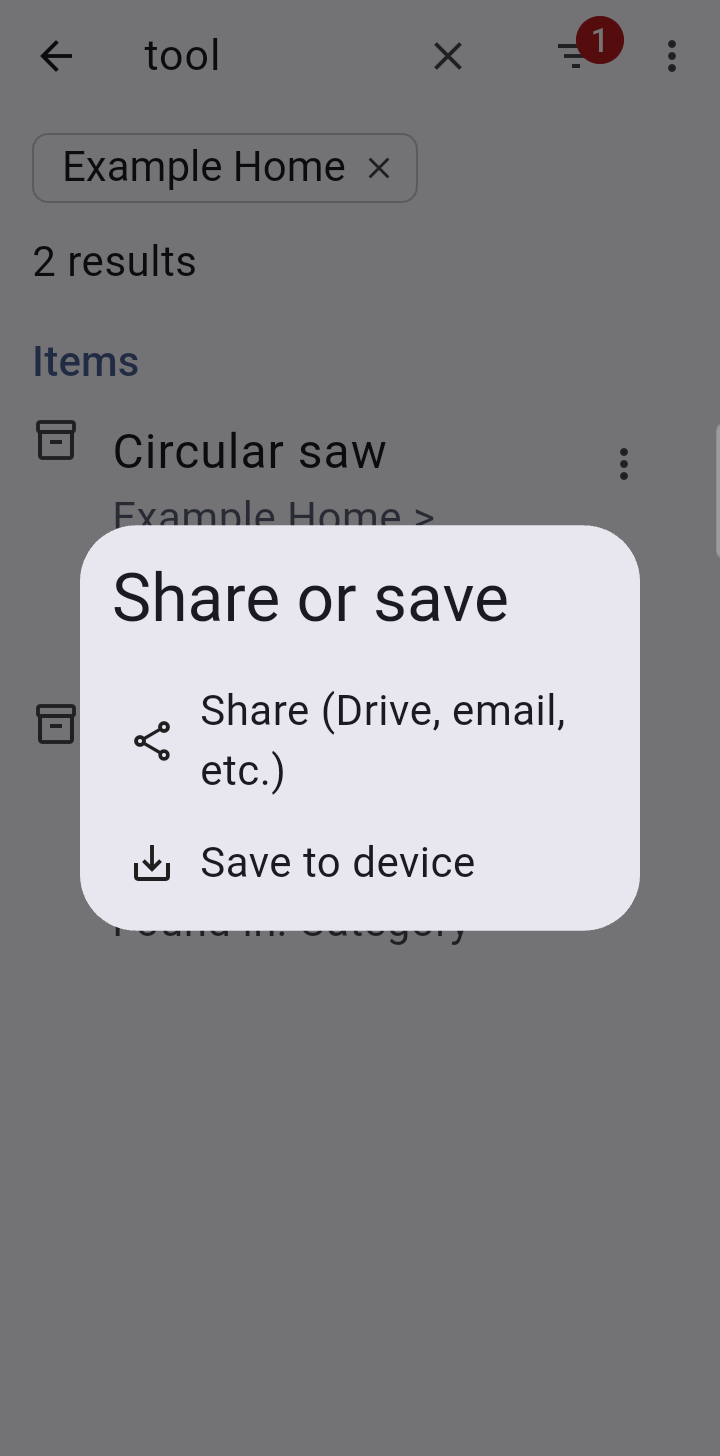
When the file is ready you are asked whether to Share it (Drive, email and so on) or Save to device in a folder you pick.
You do not need to unlock anything first: locked items are always included. The file is named with the date and time, like stowed-backup-20261030-142500.stowed, and keeps that name when you share it or save it. If you use more than one device, give each a name under Name of this device on the Backup and restore screen (it starts as a short guess from the maker and model, such as “sams sm p610”): the name goes into the file name, like stowed-moto-backup-20261030-142500.stowed, and is shown when you open the backup on another device or merge it. (Backups made before version 1.1.1 end in .stbackup; they still open.)
Backup and restore.The first question when you make a backup.
A backup with a password
The whole file is encrypted (AES-256, with a key made from your password). Without the password nobody can read it, not even us, and not even if they get the file.
Any damage to the file, or tampering with it, is detected when you open it, and nothing is restored from a file that fails the check.
The password is never stored with the backup and never sent anywhere. If you forget it, the backup cannot be opened by anyone. There is no reset.
You need the same password to restore. Each backup can have its own password, so keep track of which is which.
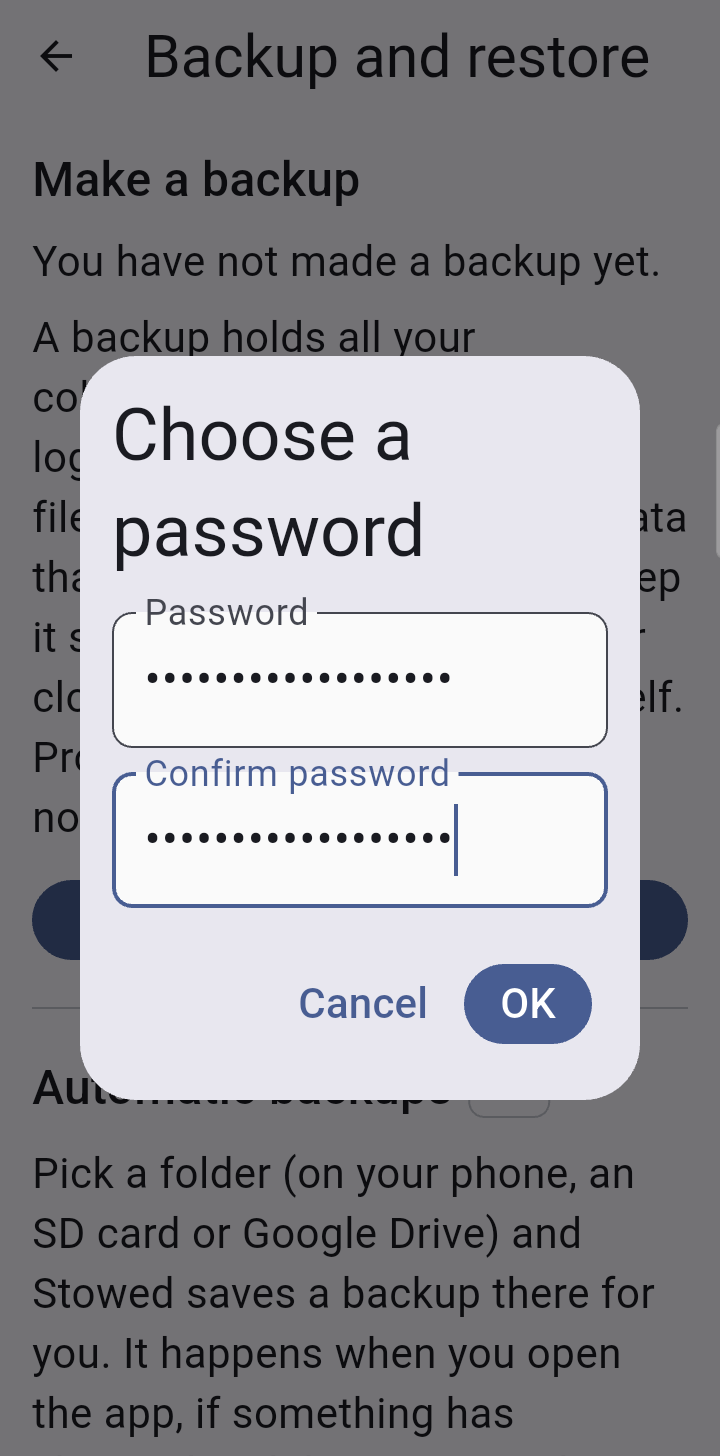
The password has to be at least 6 characters, and the app warns you if it looks easy to guess. A short phrase of several words is both easy to remember and hard to guess. Tap the eye at the end of the field to see what you typed, so a typo is easy to spot.
A password is the right choice whenever the file leaves your phone: email, cloud storage, a computer, a USB stick.
Choosing a password (shown hidden).Share the backup, or save it to the device.
A backup without a password
The file is not encrypted. Anyone who has the file can read everything in it: your notes, serial numbers, values, photos and receipts, and the items in locked places and with private tags, because locks do not apply to a backup file.
Stowed still checks the file when you open it, so accidental damage is caught, but the check is not a protection against someone changing it on purpose.
There is no password to forget, which makes it simple and safe from loss, and fine for a file that never leaves a place only you can reach.
Rule of thumb: if the backup will be stored anywhere you do not fully control, use a password. If you use no password, treat the file like the inventory itself.
Where to keep backups
Keep at least one copy off the phone, and ideally two places (for example your cloud storage and a computer). A backup only on the phone does not help if the phone is lost.
Make a fresh one before anything big: deleting a location, resetting the location password, replacing the phone, or restoring another backup.
Opening a backup to restore from it
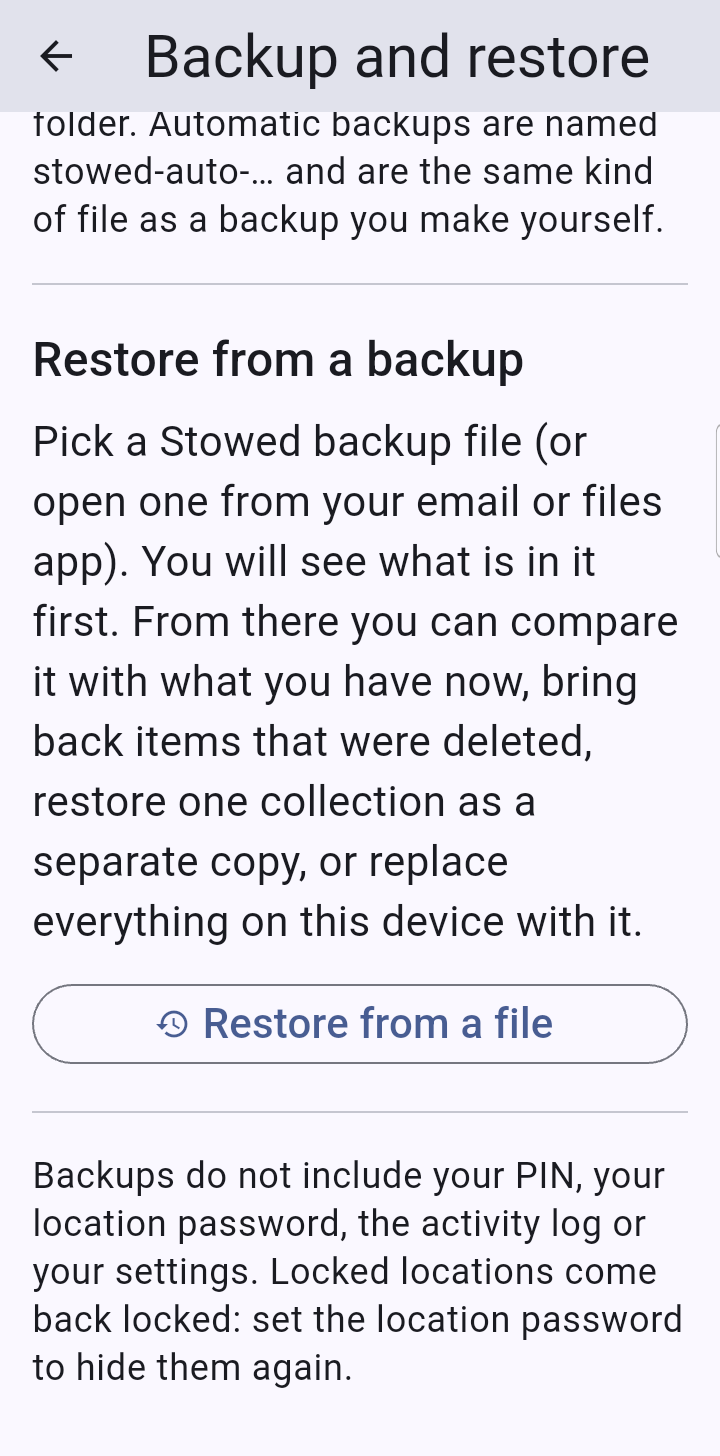
Open Backup and restore > Restore from a file and pick the backup, or open a .stowed (or older .stbackup) file from your Files app, Drive or an email, and Android offers to open it in Stowed.
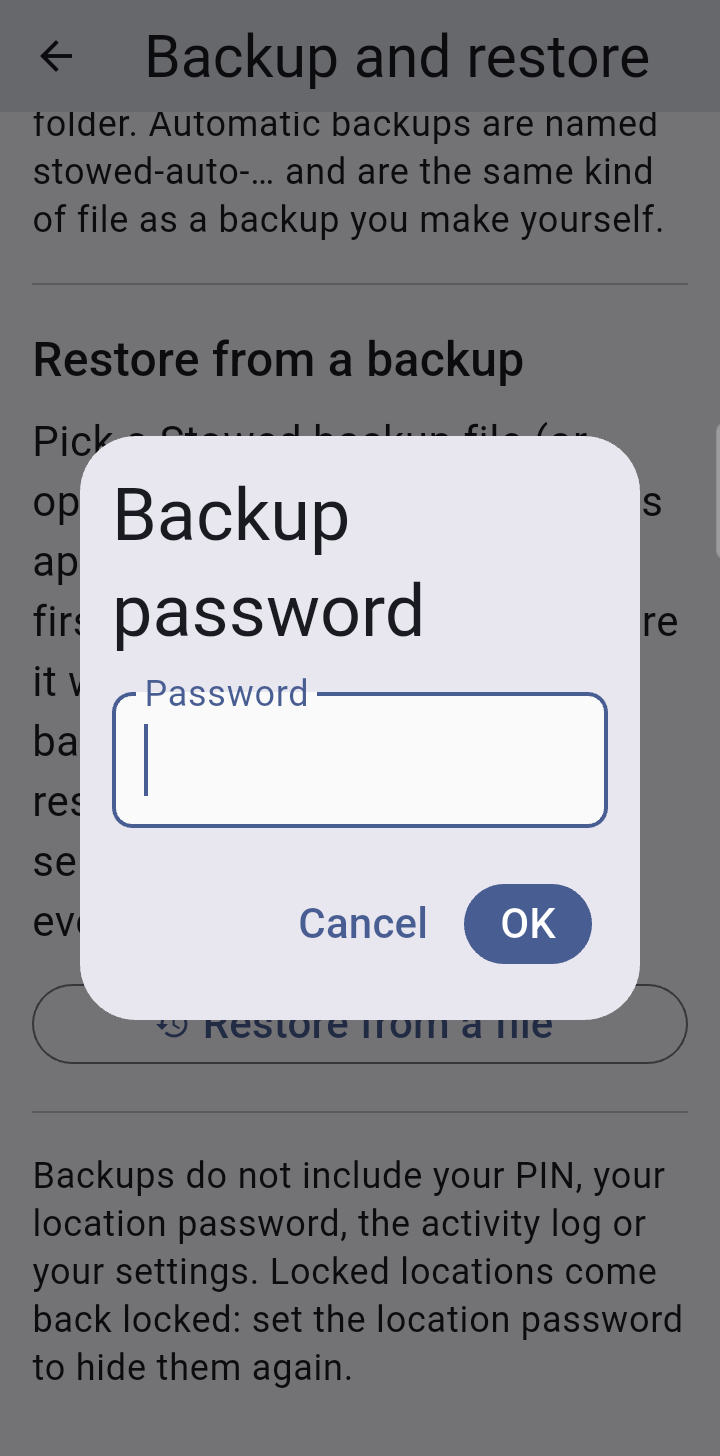
If it has a password you are asked for it. A wrong password just asks again.
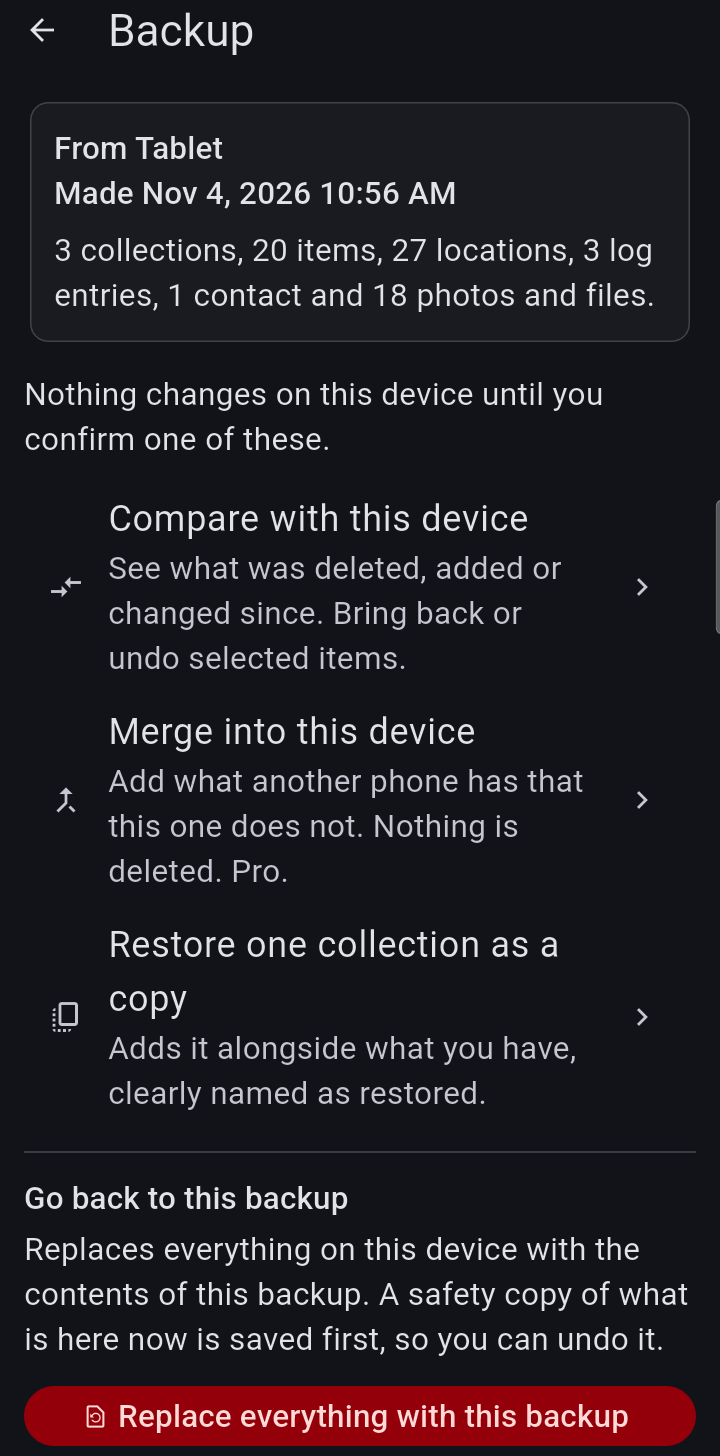
Stowed checks the file completely and then shows what is in it: how many collections, items, locations, log entries, contacts, photos and files, and how many places are locked.
It also says plainly if some photos or records are missing from the file and would not be restored.
Nothing on the phone changes until you choose one of the options below and confirm it.
Restore from a file.A protected backup asks for its password.What is in the backup. Nothing changes yet.
The ways to restore
Compare with this device
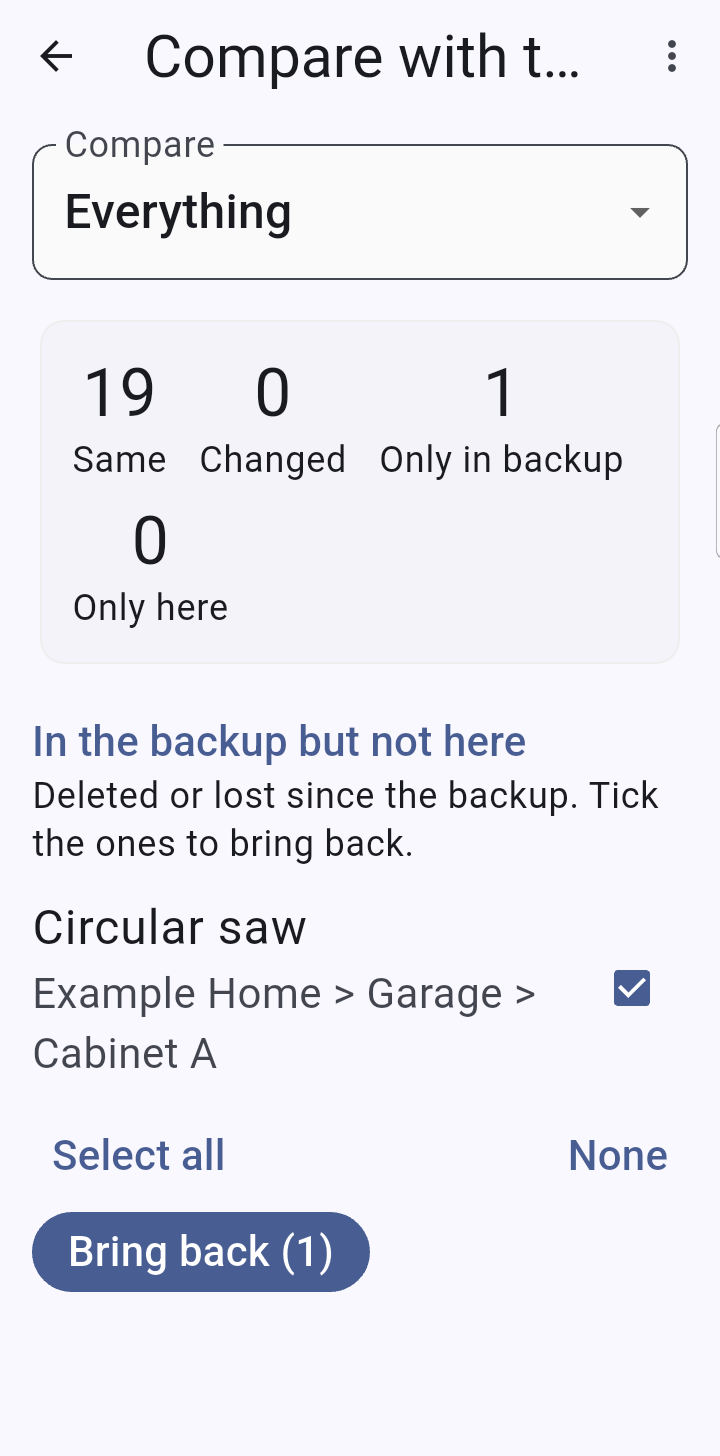
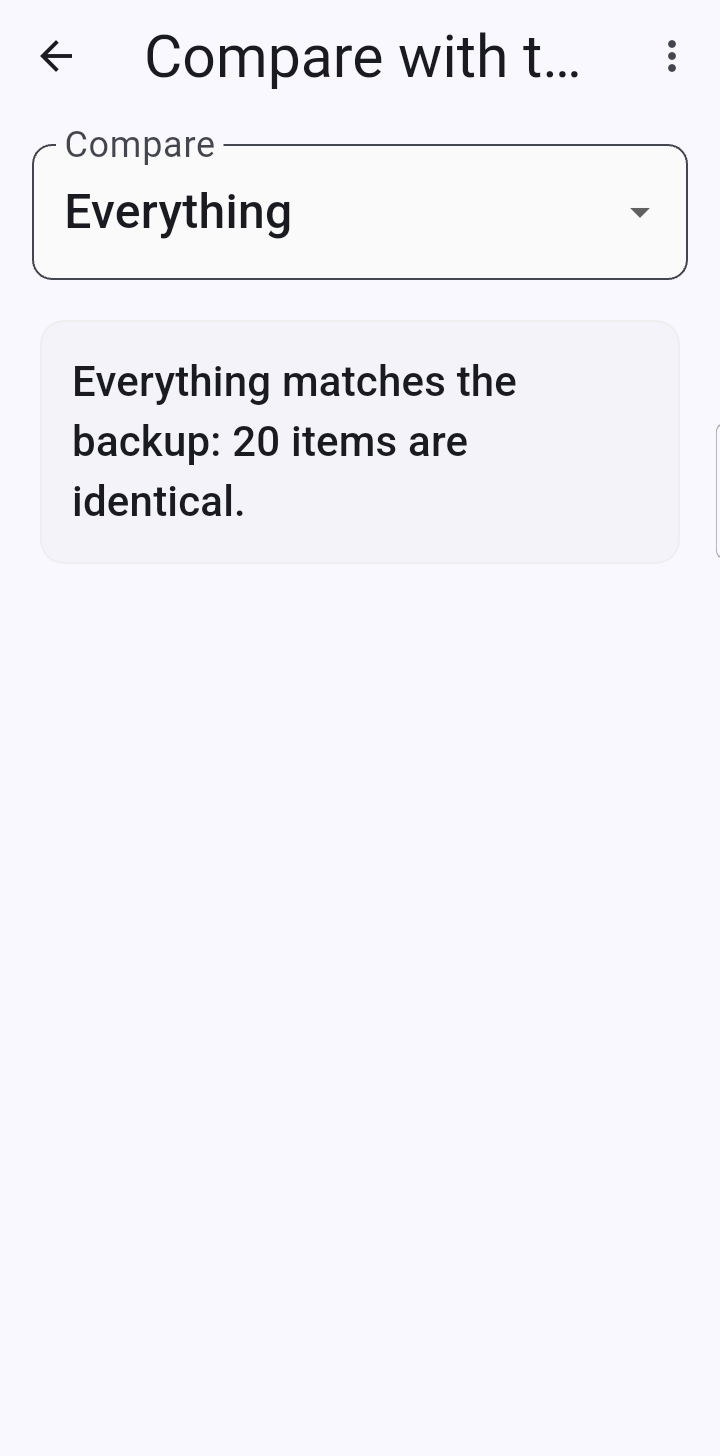
Shows what was deleted, added or changed since the backup, matching items by identity, so a renamed item shows as changed, not as one deleted and one added. From the list you can:
Bring back an item that was deleted. It returns complete: photos, serial numbers, log, files, contacts and tags. If the collection or location it lived in is gone, that is recreated too. Asking again does nothing, because it is already there.
Set back an item you changed, to the details it had in the backup. Its photos and log are left alone.
Compare also lists collections and locations that exist on only one side. Nothing is applied until you tap the button for the selected items.
Merge into this device (Pro)
For the whole routine with two devices, step by step, see the chapter More than one device.
For two phones that both catalog the same household. On the other phone, make an ordinary backup and move the file to this one (for example through Google Drive or email to yourself). Here, open it and choose Merge into this device. Nothing needs to be set up on the other phone, and it does not need Pro.
New items are listed and ticked; untick any you do not want. They arrive complete, with photos, files, log and tags, in new collections and locations that are created as needed. Places you already have are never renamed or moved.
Items on both phones that differ: if the other phone's was edited more recently, it is offered (open it to see what differs) and ticked. If yours was edited more recently it is left alone.
Photos, log entries and files that only the other phone has are added to items you already have.
Nothing is ever deleted. Before anything changes, a safety copy is saved, and Undo a restore puts everything back.
Collections with the same name. Two phones that each made their own “Home” have two different collections, because collections are matched by identity, not by name. When the other phone has a collection named like one of yours, you choose for each: Combine into mine (the default: its items and places go into your collection) or Keep separate (it is added as its own collection). Rooms are still matched by identity, so after combining you may see the same room name twice; fold them together with Advanced… > Move everything in here to another place.
Locked places and items with a private tag, on either phone, are left out unless locked places are showing, just as in Compare.
You can merge again later. Stowed remembers which items came from which phone, so a second merge lists only what is new since the last. If you deleted an item here after a merge, it is shown separately as “Deleted here since the last merge”, and not ticked, so it does not quietly come back. Backups made before this version carry no phone identity, so merging them behaves like a first merge.
Limits: a changed item is taken whole from the newer phone, not combined field by field, and “newer” relies on both phones having roughly the right date and time.
Compare: what is only in the backup, ready to bring back.When nothing differs.
Restore one collection as a copy
Adds one collection from the backup as a brand-new collection named with “restored” and today's date, alongside what you have. Nothing you have now is changed or duplicated by it, and you can do it again to get a second, separate copy.
Replace everything
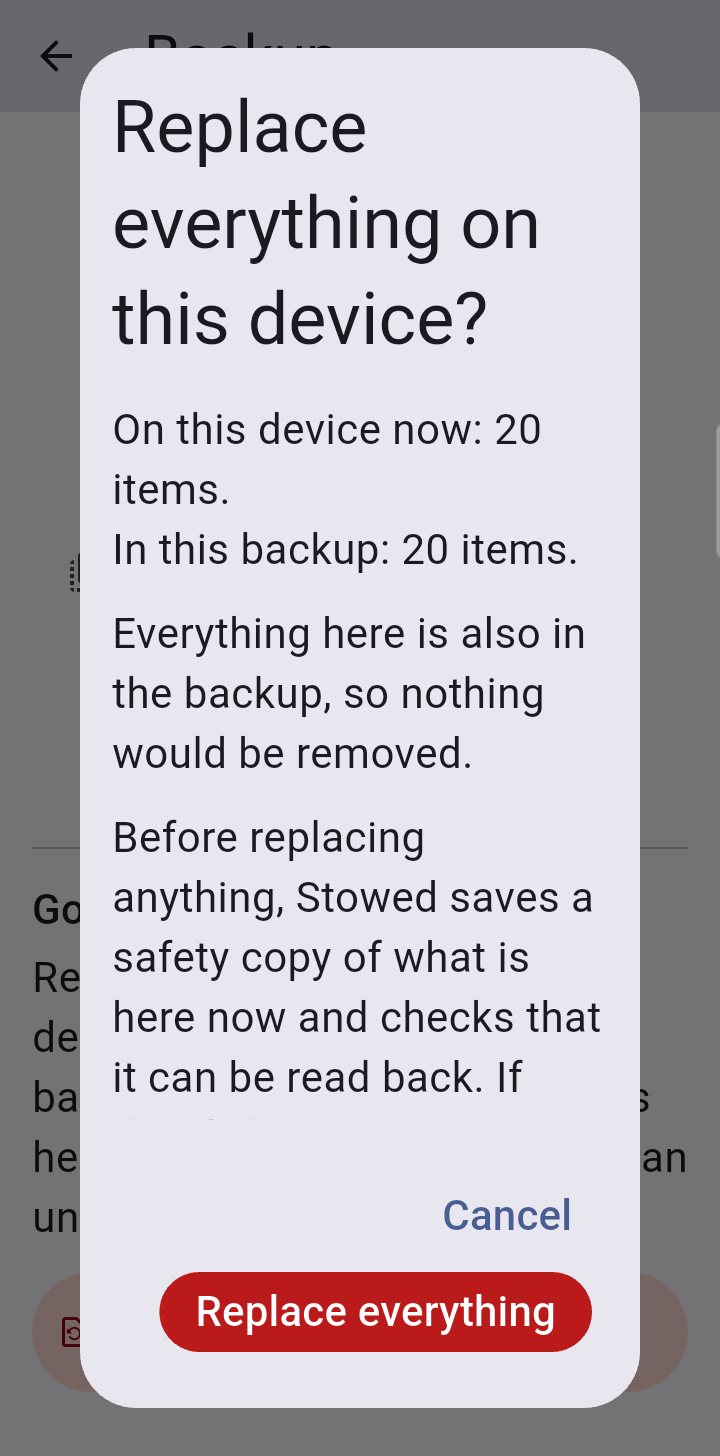
Makes the phone match the backup exactly. Before it does anything, Stowed shows what would be lost: how many items on the phone are not in the backup, and the names of some of them
(never the names of locked or private items). Then:
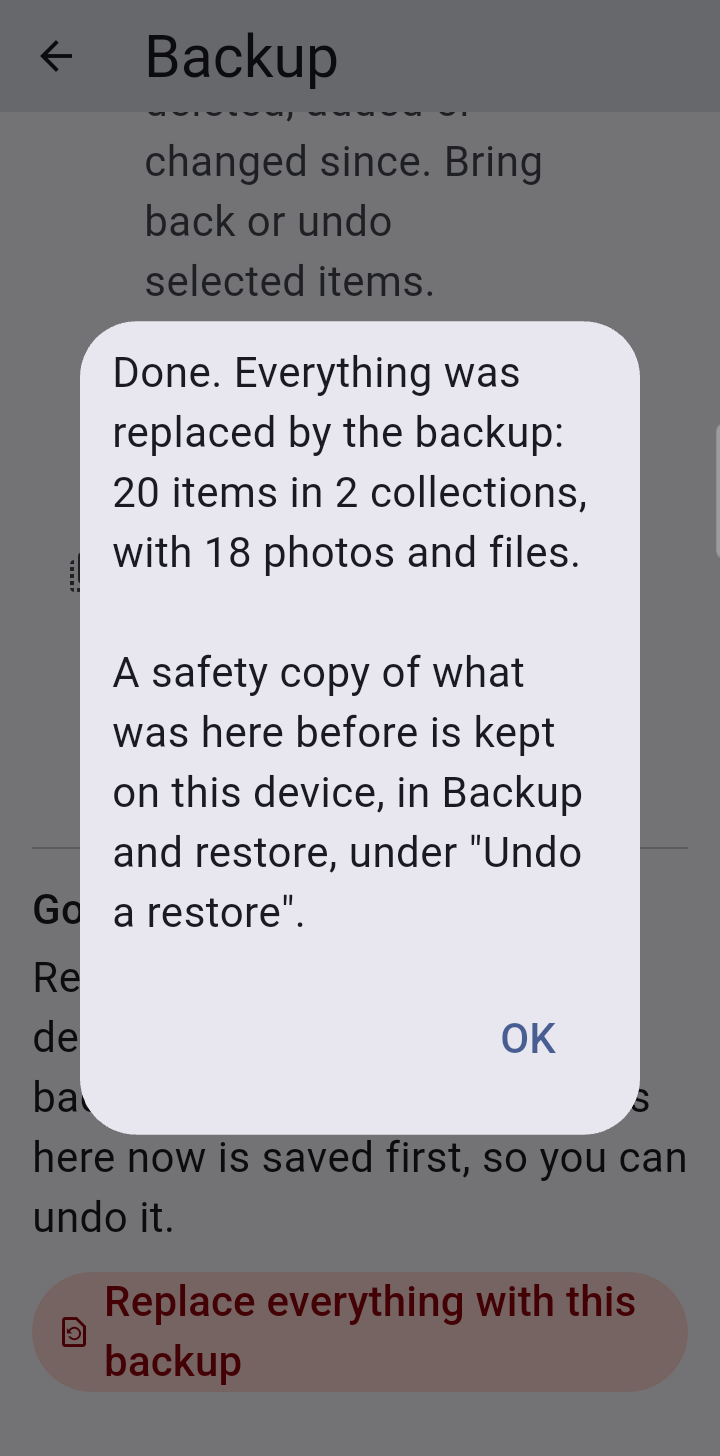
It first saves a safety copy of what is on the phone now and verifies it. If the safety copy cannot be made, nothing is replaced.
If anything goes wrong part-way, everything is put back exactly as it was and nothing is changed.
Photos and files are stored again under this phone's own encryption key.
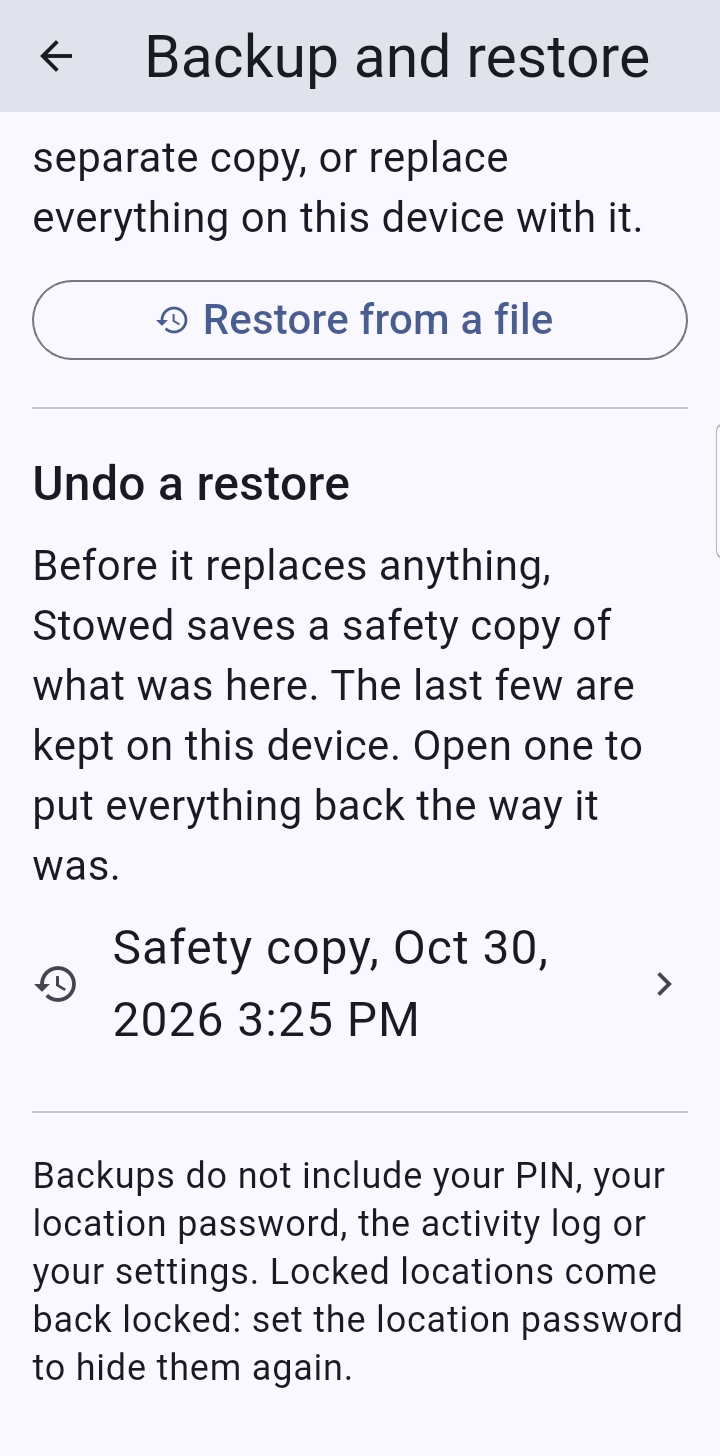
Undo a restore. The safety copies are kept in Backup and restore, under Undo a restore, newest first. Stowed keeps the last three. Open one and choose Put everything back to undo.
The safety copies are protected by a key held on this phone, not by a password you know, so they can be used on this phone but are not something to move elsewhere.
Replace everything says what would change first.And where the safety copy is kept.Undo a restore.
Locked items, private items and restoring
This is the part that is easy to get wrong, so here it is in one place.
The backup contains them. Locked locations and collections, their items, and items with private tags are all in the file. A password protects the file; the locks do not.
The location password is not in the backup. After restoring, the phone uses its own location password, if it has one.
Replace everything brings places back locked and private tags back private. But if the phone has no location password, nothing is hidden, because a lock needs a password to mean anything.
On a new phone, set the location password (Settings > Security) straight after restoring, and the locked places and private items disappear again until you unlock. Stowed reminds you of this when the restore finishes.
Restore one collection as a copy keeps the locks too: a locked collection comes back as a locked copy, locked locations stay locked, and items with a private tag stay hidden.
A copy never makes hidden things visible. If the phone has a location password, a locked copy disappears from the list until you choose Show locked locations; the app tells you so when it finishes.
Compare, bring back and set back leave out items in locked places and items with private tags until locked places are showing. The screen says how many were left out. Show locked locations (with the password), and they appear.
An item brought back into a place that no longer exists recreates that place with its lock as it was.
Privacy wins. If a tag is private in the backup, restoring an item with that tag makes the tag private here too, even if you had made it ordinary since.
The preview before Replace everything counts hidden items but never names them.
If you reset the location password and its locked items were deleted, a backup is how you get them back. They return locked and private; they will be hidden again as soon as you have set a new location password.
Automatic backups (Pro)
With Pro, Backup and restore can save a backup automatically, to a folder you choose with Android's folder picker (on the phone, an SD card, or a cloud folder such as Google Drive).
You decide how often, how many of the latest backups to keep, and whether they are protected by a password. It saves a new one only when something has changed.
For protected automatic backups the password is kept in this phone's secure storage so Stowed can make backups without asking. Write it down anyway: if you clear the app's data or get a new phone, that stored copy is gone and the backups need the password you chose.
If you choose a cloud folder, that provider's own privacy terms apply to the files in it.
To restore, use Restore from a file and pick one of the files from that folder, exactly like any other backup.
Moving to a new phone
On the old phone make a backup, with a password, and get it somewhere you can reach from the new phone (cloud storage, or Save to device and copy it across).
On the new phone install Stowed, open Backup and restore > Restore from a file, pick the file and enter its password.
Choose Replace everything.
Set your PIN and a location password in Settings > Security (neither travels with a backup).
If you bought Pro, open Stowed Pro and tap Restore purchase.
If something looks wrong
“That password did not work.” Check capitals and spaces. If you have several backups, make sure it is the right one. If the password is truly lost, the file cannot be opened.
A message that the file is damaged. Copy it again from where you stored it; a partly downloaded file is the usual cause. Nothing on the phone is changed.
Some items seem missing after a restore. They may be in locked places or have a private tag; show locked locations. Sold, gifted and lost items are hidden unless you choose Show sold, gifted, lost.
I restored the wrong thing. If you used Replace everything, open Undo a restore.