
Step-by-step walkthroughs for every mode
The classic high-intensity interval protocol, fully configurable.
From the home screen's Modes section, tap Tabata.
Adjust Prep/Warmup, Work, Rest, Cooldown, Cycles, and Sets with the +/- steppers. The defaults (10s prep, 20s work, 10s rest, 8 cycles) match the original 1996 Tabata protocol. Prep/Warmup can be extended well past a short countdown if you want a real warmup period, and Cooldown is optional and runs once after the last cycle.
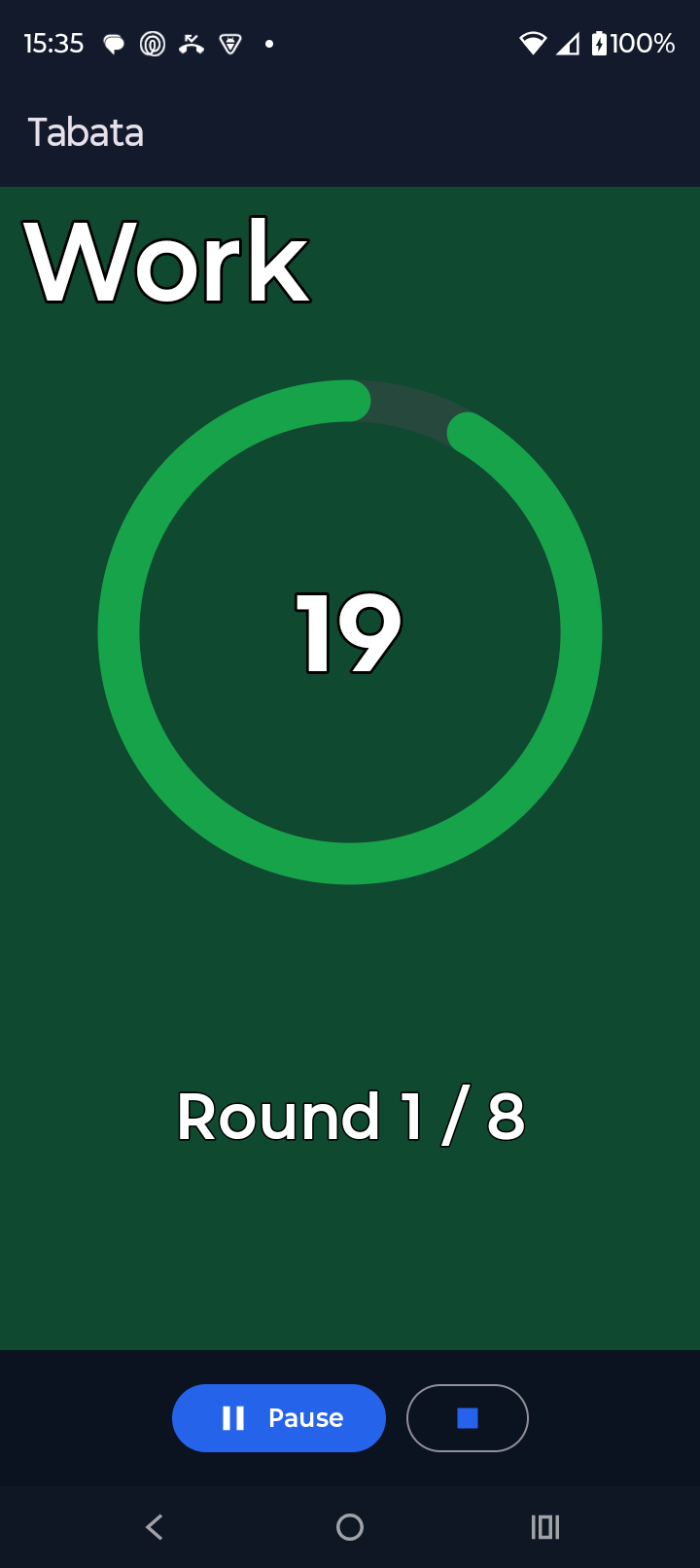
A Tabata work interval in progress, with the round counter below.
Expand Display & sounds to pick a time-display style and the cue sounds for round start, countdown, and finish, plus a toggle for spoken motivational phrases just for Tabata.
Tap Start. The screen color shifts with each phase (prep/warmup, work, rest, cooldown) so you always know where you are at a glance.
Tap it any time to read what Tabata is and how it's meant to be used — the work interval is meant to be all-out, 100% effort.
Round-by-round routines for anything Tabata's fixed structure doesn't fit.
From the home screen, tap Custom Workouts, then the New button.
Give the workout a name, then tap + Add round for each round.
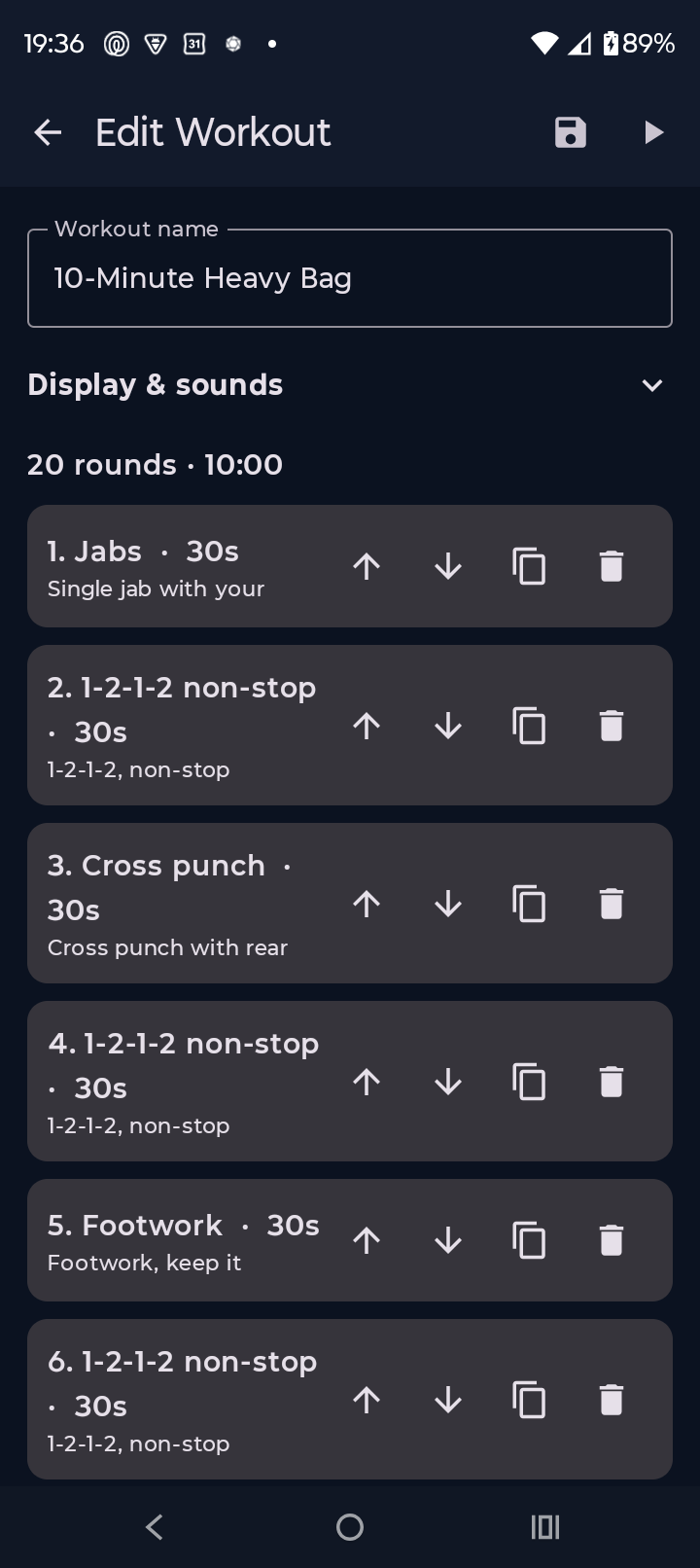
The round list for a custom workout, with reorder, duplicate, and delete on each row.
Tapping a round opens its editor: name, duration, a spoken entry cue (with a toggle to speak it or not), a motivational-phrases toggle, and a background — a solid color, a photo from your device, or one of the bundled gallery images.
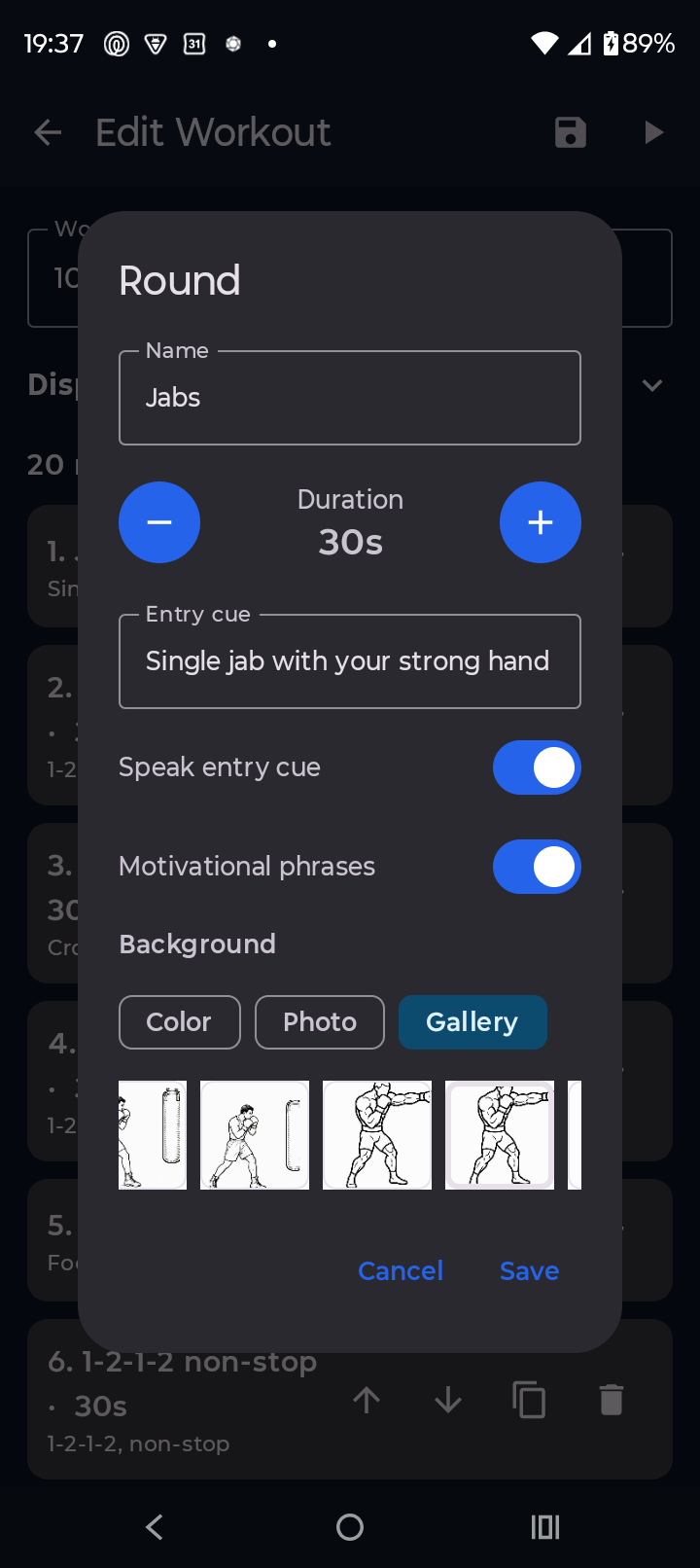
The round editor, including the background color/photo/gallery picker.
Expand Display & sounds at the top of the builder to set a display style and cue sounds that apply to every round in this workout.
Tap the save icon in the top bar, then the play icon to run it immediately, or find it later in your Custom Workouts list.
A fixed number of equal work windows, back to back.
From the home screen's Modes section, tap EMOM.
Rounds is how many windows you'll do; Interval is how long each one lasts (60 seconds is traditional, but any length works). A new round starts the instant the previous one ends — there's no separate rest segment.
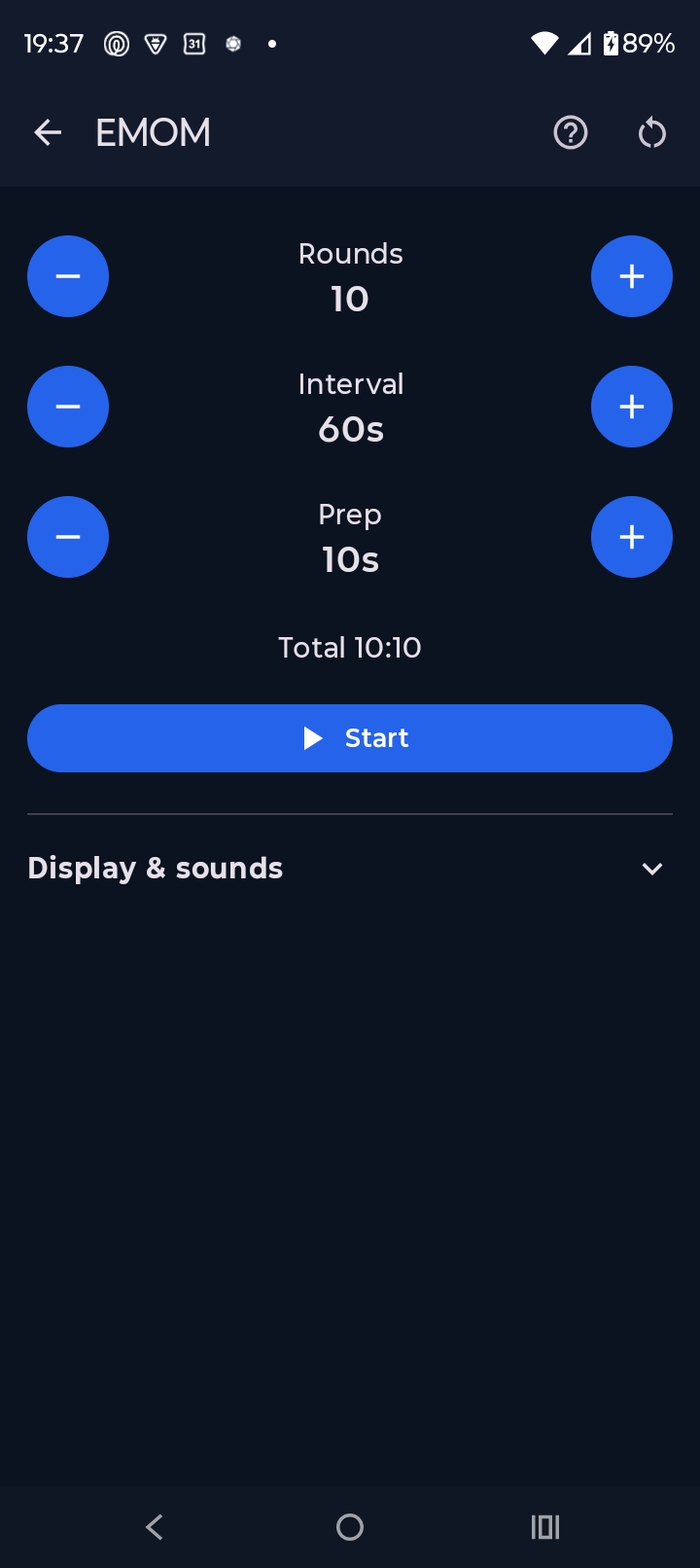
EMOM's configuration screen: rounds, interval, and prep.
Do your set number of reps as fast as you can at the start of each round, then rest with whatever time is left before the next one begins. The less time you spend resting, the harder the workout. Tap the "?" icon on this screen any time for a reminder.
Two simple, single-purpose timers.
From the home screen's Other Timers section, tap Countdown, set minutes and seconds, and tap Start for one timed effort. The duration you set is remembered the next time you open Countdown.
Tap Stopwatch to count up with laps — useful for anything that isn't on a fixed clock.
Optional encouragement, spoken aloud during your workout.
Tap the gear icon in the top-right of the home screen to open Settings, then go to Motivation and enable "Spoken encouragement during work." It's on by default.
Tap Manage phrases to edit the phrase list — phrases can use
{ROUND}, {REMAINING}, and {TOTAL} placeholders that fill
in your current round and round count.
Tap Choose voice to pick from your device's installed text-to-speech voices, and use the Motivation volume and Speech rate sliders to tune it — both have a Test button so you can preview changes.
See your progress, and undo an accidental edit or delete.
Tap History on the home screen for a bar chart and a log of every workout you've run, completed or stopped early. Switch between 30 Days, 12 Months, and All Time above the chart. Use the share icon to share a summary, or the clear icon to wipe the log.
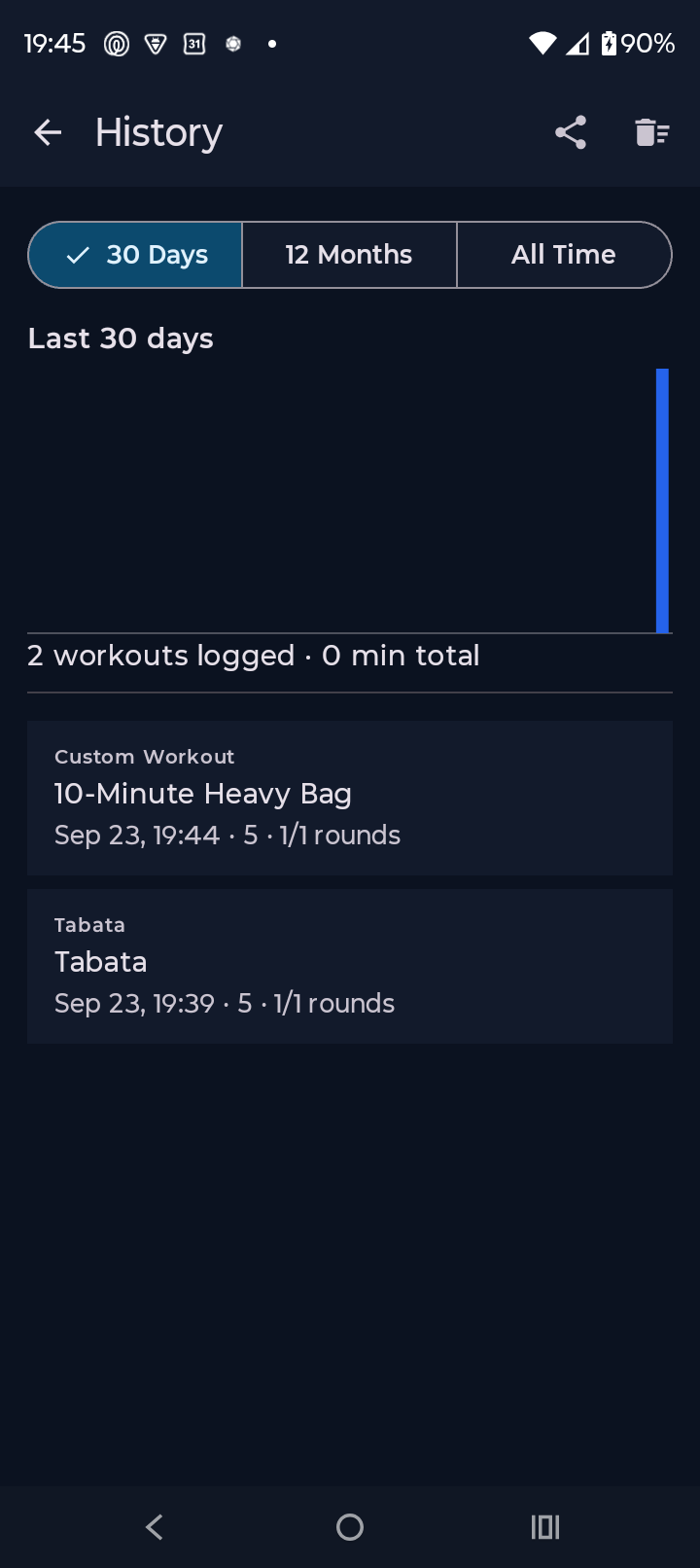
The History chart with its 30 Days / 12 Months / All Time range picker, and a full log below.
If you've edited or deleted one of the workouts Tabata Forge ships with, open Custom Workouts and tap the restore icon in the top bar. It adds back any missing built-in workout as a fresh copy — named with "(restored)" so it's easy to tell apart — without ever touching your own edits.
Tap the reset icon on either screen's top bar to put its timing, display style, and cue sounds back to their defaults.