Stowed keeps everything on the device it is on. There is no account and nothing is sent to a server, which is what keeps your inventory private. The price of that is that two devices do not update each other by themselves. Instead you carry a backup file from one device to the other, and Stowed brings the two together. This chapter shows the safe way to do it, one step at a time.
Two tools, and the one thing to remember
Restore (Replace everything) makes a device an exact copy of a backup. Whatever was on that device is replaced. It is the right tool exactly once: to give a second device its starting copy.
Merge adds what is new from a backup to what you already have. It never deletes anything. It is the tool to use every time after that.
The one thing to remember: after the second device has its starting copy, always bring changes across with Merge, never with Replace everything. Replacing would wipe out anything you added on that device since the backup was made.
Merge is an Stowed Pro feature on the device you merge into. The device that only makes a backup does not need Pro.
What you need
Stowed on both devices.
A way to move a file between them: email it to yourself, put it in Google Drive, or use Nearby Share or a USB cable. Backup files are named like stowed-moto-backup-20261102-094500.stowed.
A few minutes at the start, to do steps 1 to 4 once.
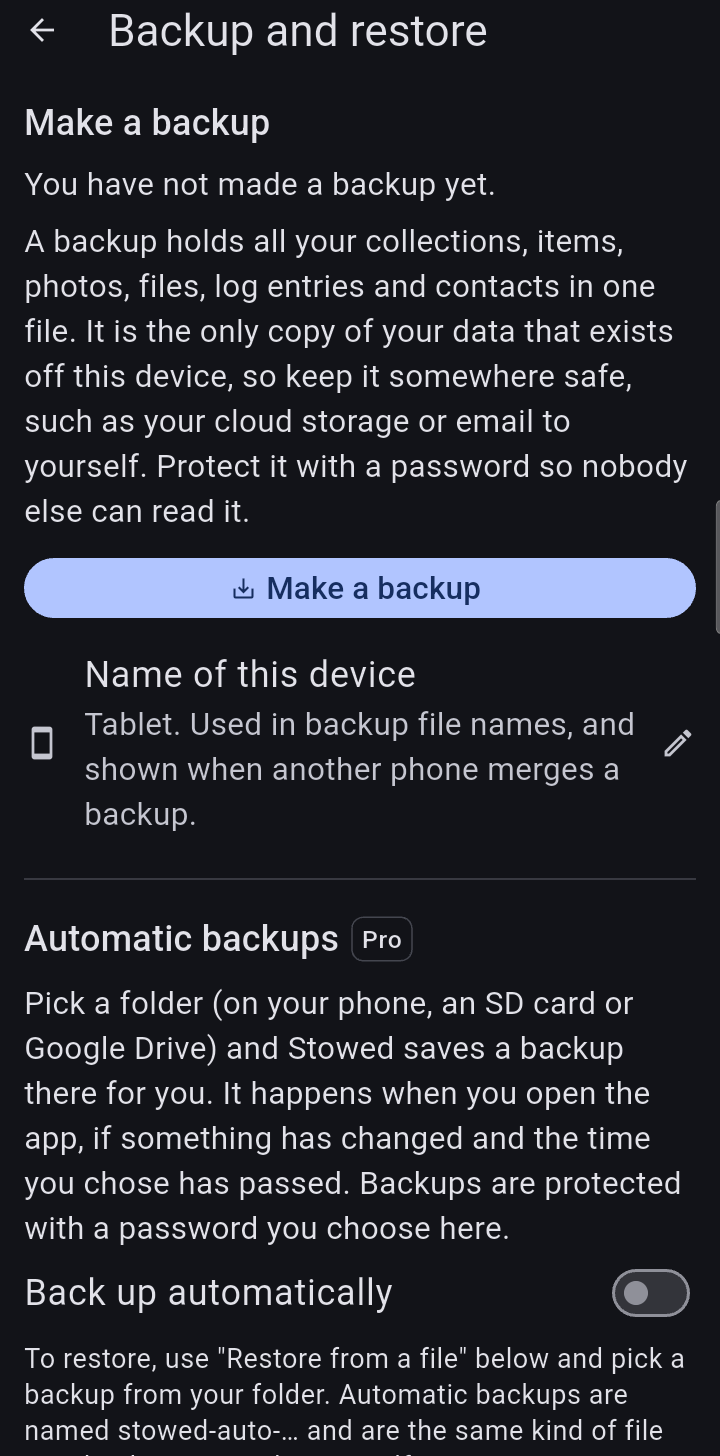
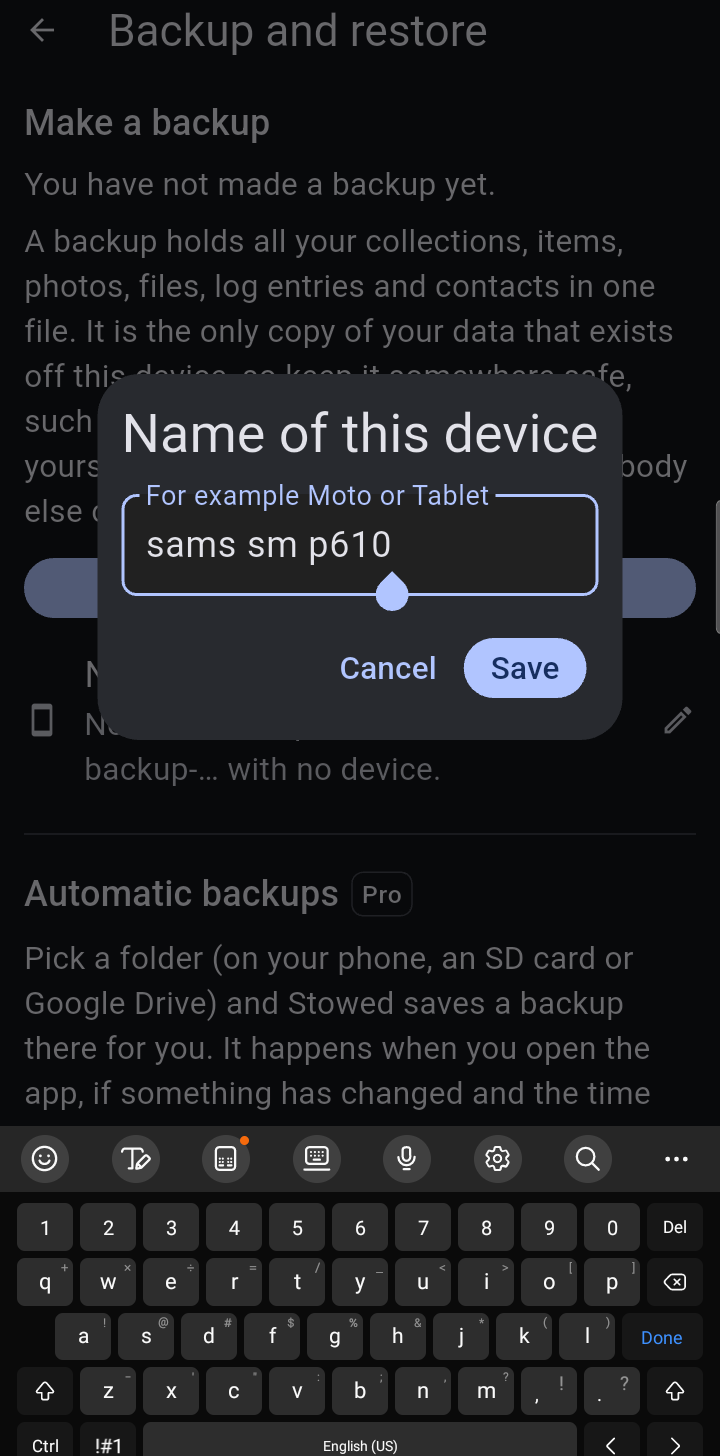
Backup and restore: where you make a backup and name this device.Naming the device.
Step by step
On your main device, set up the collection and the rooms. Make the collection and add the rooms and other places, such as Upstairs, Master bedroom, Garage. For a home, Set up the rooms with a few questions does most of it in a minute. It does not need to be complete: the main rooms are enough, and you can add more later on either device. Why: every collection and room gets a hidden, permanent identity the moment it is created. If you create the rooms once and copy them to the other device, both devices agree that “Master bedroom” is the same room. If each device creates its own, Stowed sees two different rooms that happen to have the same name.
Give each device a name. On each device open Backup and restore > Name of this device. A short guess is already filled in; change it to something you will recognize, such as Moto or Tablet. Why: the name goes into every backup file name and is shown when you open a backup on the other device, so you always know which device a file came from.
Make a backup on the main device and move it to the second device. Open Backup and restore > Make a backup, then share the file (or save it) and get it onto the other device. Why: the backup is a complete picture of your collection, rooms and all. It is the only way to hand the structure to the other device.
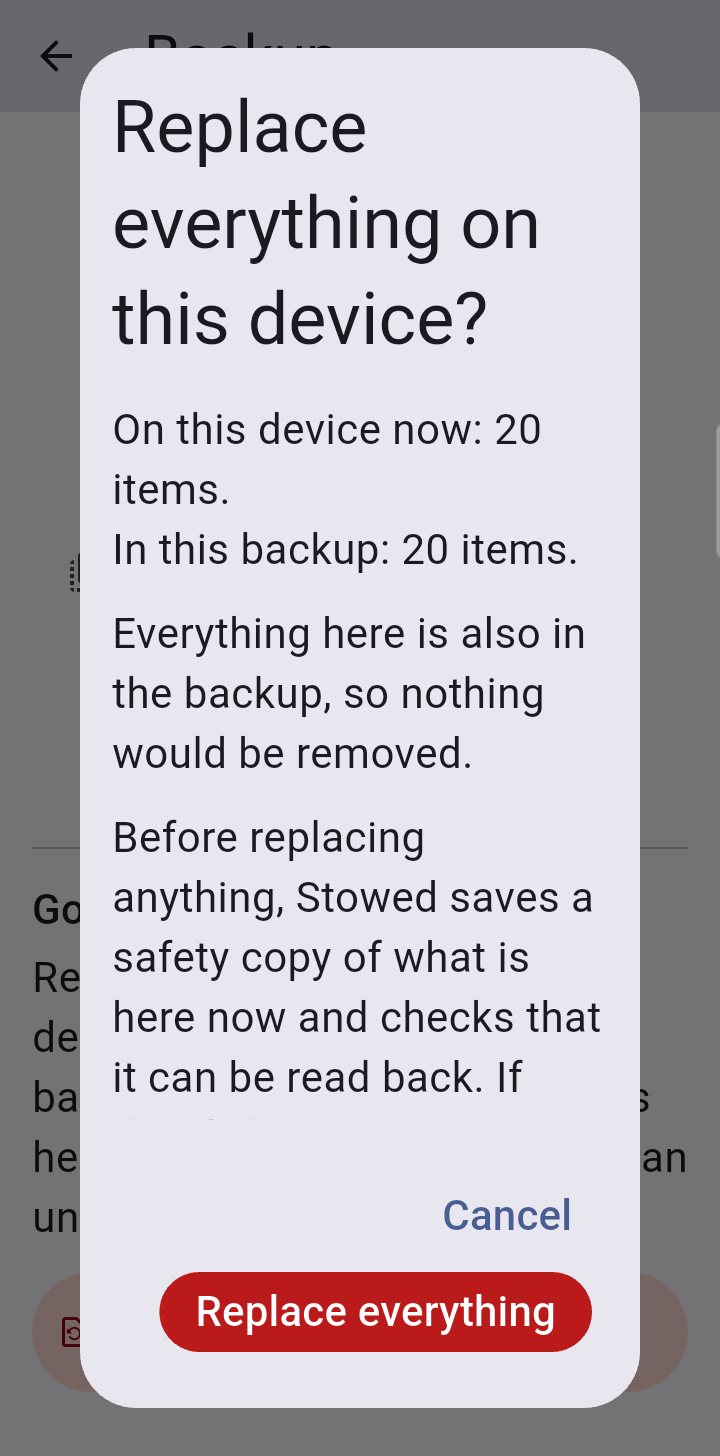
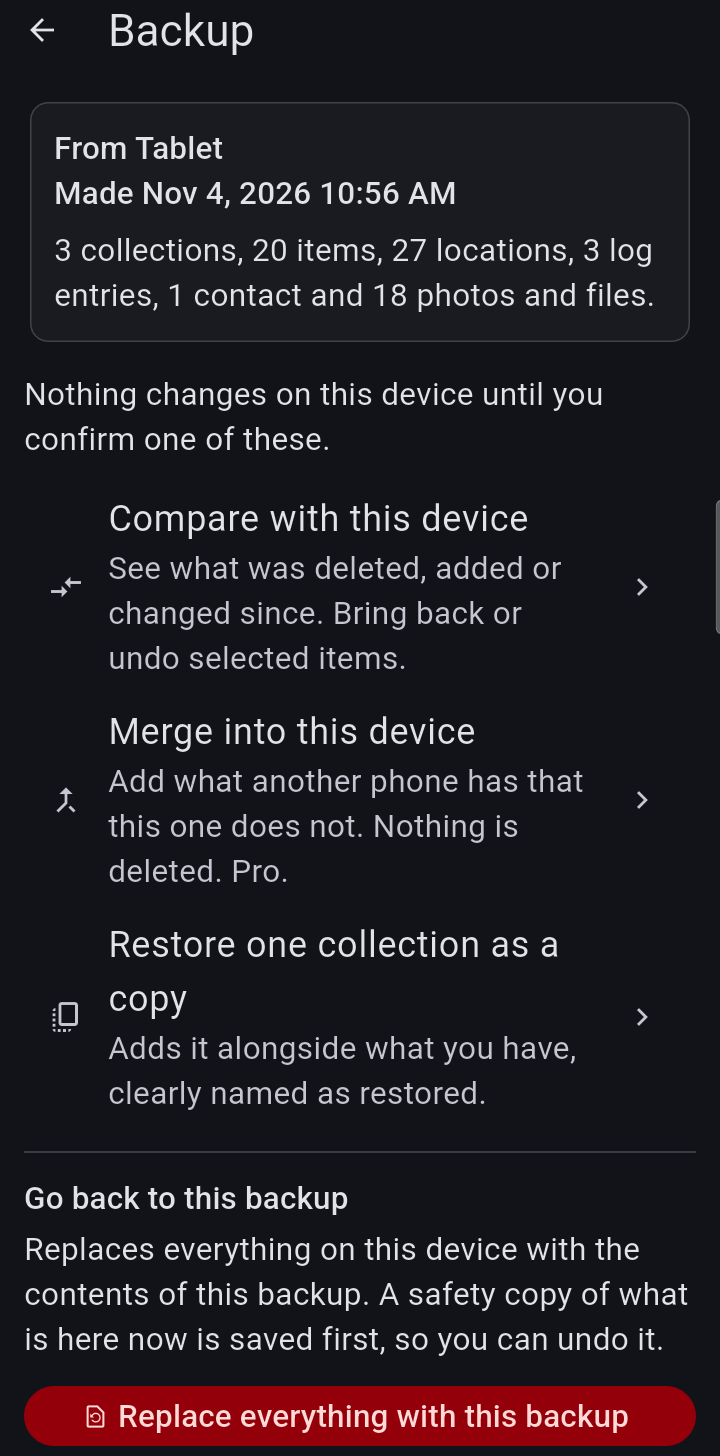
On the second device, restore it with Replace everything. Open the file in Stowed (or Backup and restore > Restore from a file), choose Replace everything with this backup, and confirm. Caution: this replaces everything on this device with the contents of the backup, including any collection that has the same name. Do it only on a device that has nothing you want to keep. A safety copy is saved first, and Undo a restore can bring it back. Why: this makes the second device start from exactly the same collection and rooms as the first, with the same hidden identities. This is the only step where replacing is correct.
Take the inventory on either device, or both. Add items, photos and notes wherever it is convenient: the tablet in the garage, the phone in the bedroom. It helps to divide the rooms between you, so that each item is only edited on one device. Why: if the same item is changed on both devices, Stowed keeps the version that was edited later and offers the other as a choice, but it does not blend the two.
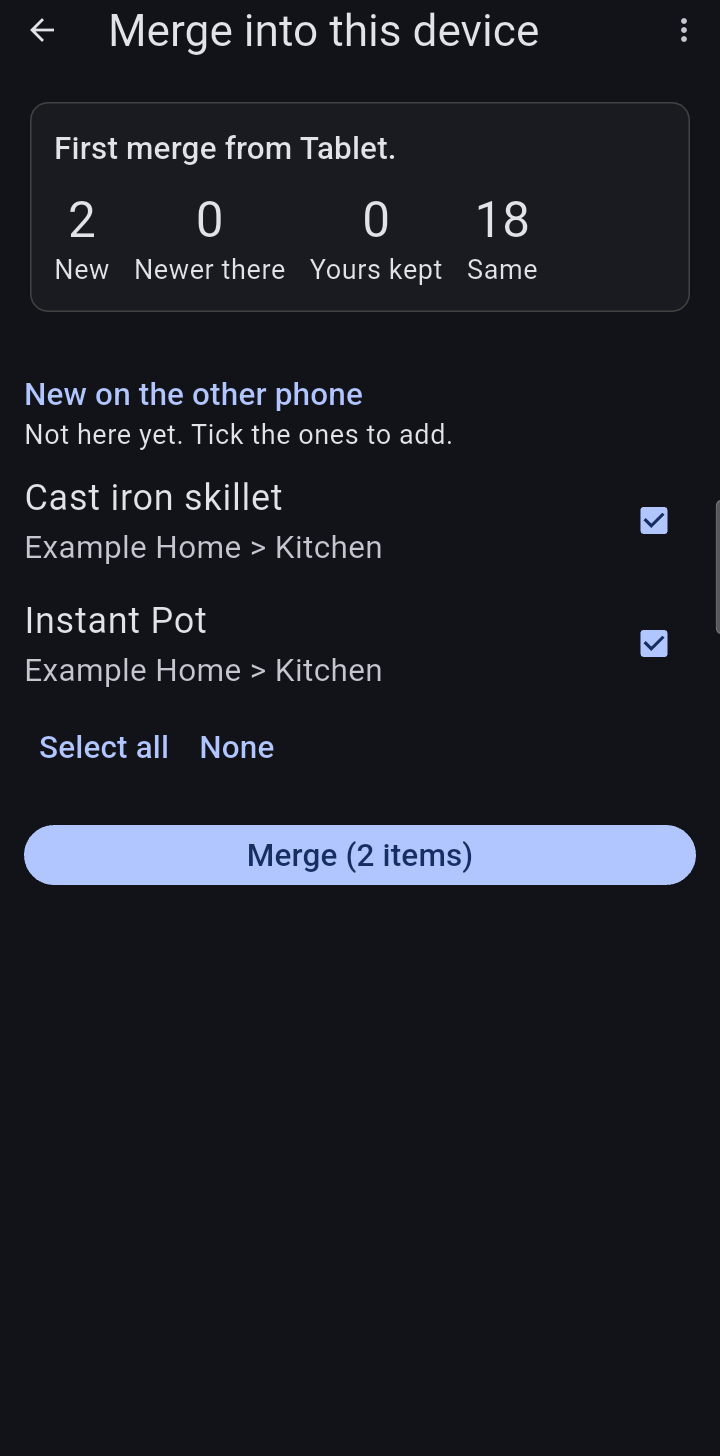
When you want to bring the two together, make a backup on the second device and merge it on the main one. Make a backup on the second device, move the file to the main device, open it there and tap Merge into this device. Stowed shows what is new, what was edited more recently on the other device, and the photos and log entries it will add. Look it over and tap Merge. Why: merge only adds. Nothing on the main device is deleted or moved, a safety copy is saved first, and Undo a restore reverses a merge you did not want.
Send the combined inventory back to the second device, again with Merge. Make a new backup on the main device, move it across, and on the second device choose Merge into this device (not Replace everything). Why: now the second device receives everything the main device has, including what you added in step 5 on the main device, and keeps whatever you have added on the second device since step 6.
Repeat steps 5 to 7 whenever you like. Stowed remembers which device each item came from, so a repeat merge lists only what is new since the last one.
Step 4: Replace everything says what would change first.An opened backup says which device made it. Nothing changes yet.Merge into this device: what is new, ready to tick.
Good to know
Deleting does not travel. Merge never deletes, so an item you delete on one device can come back from the other device's backup. If you merged it before and deleted it since, it appears under “Deleted here since the last merge” and is not ticked, so it does not return by accident. Delete it on both devices to remove it for good.
The later edit wins. For an item changed on both devices, the one edited most recently is offered, as a whole item, not field by field. This relies on both devices having roughly the right date and time.
New rooms are fine. A room added on either device simply arrives on the other with the next merge. Existing rooms are never renamed or moved by a merge.
Locked rooms and private items are left out of a merge unless locked places are showing, just as in Compare.
Photos make backups big.Storage used in a collection's menu shows how much space the photos take, which is also about the size of a backup.
If you already started on both devices
If each device already has its own inventory, you can still bring them together; it just needs a little tidying afterwards.
Make a backup on one device, and on the other open it and tap Merge into this device.
If both devices have a collection with the same name, say Home, Stowed asks about each one. Choose Combine into mine to put the other device's items into your collection, or Keep separate to add it as a second collection.
Rooms are matched by their hidden identity, not their name, so after combining you may see the same room twice, for example two Upstairs. Fold them together: open one, then the menu > Advanced… > Move everything in here to another place, pick the other one, and leave Combine places with the same name ticked. Its items and the rooms inside it move across, and you can delete the emptied room.
From then on, follow steps 5 to 8 above.
Items are never joined by name: if you and a family member each added the same lamp, you will see two lamps and can delete one.