Stowed User Manual, chapter 4 of 11
← Places, boxes and labelsContentsFinding things →
Open the item and choose Move to… from its menu, or use the three-dot menu on its row in a place or in the search results. You can pick any place in any collection; the places you used recently are one tap.
Press and hold an item in a list to select it, tap more items, then choose Move to… in the top bar.
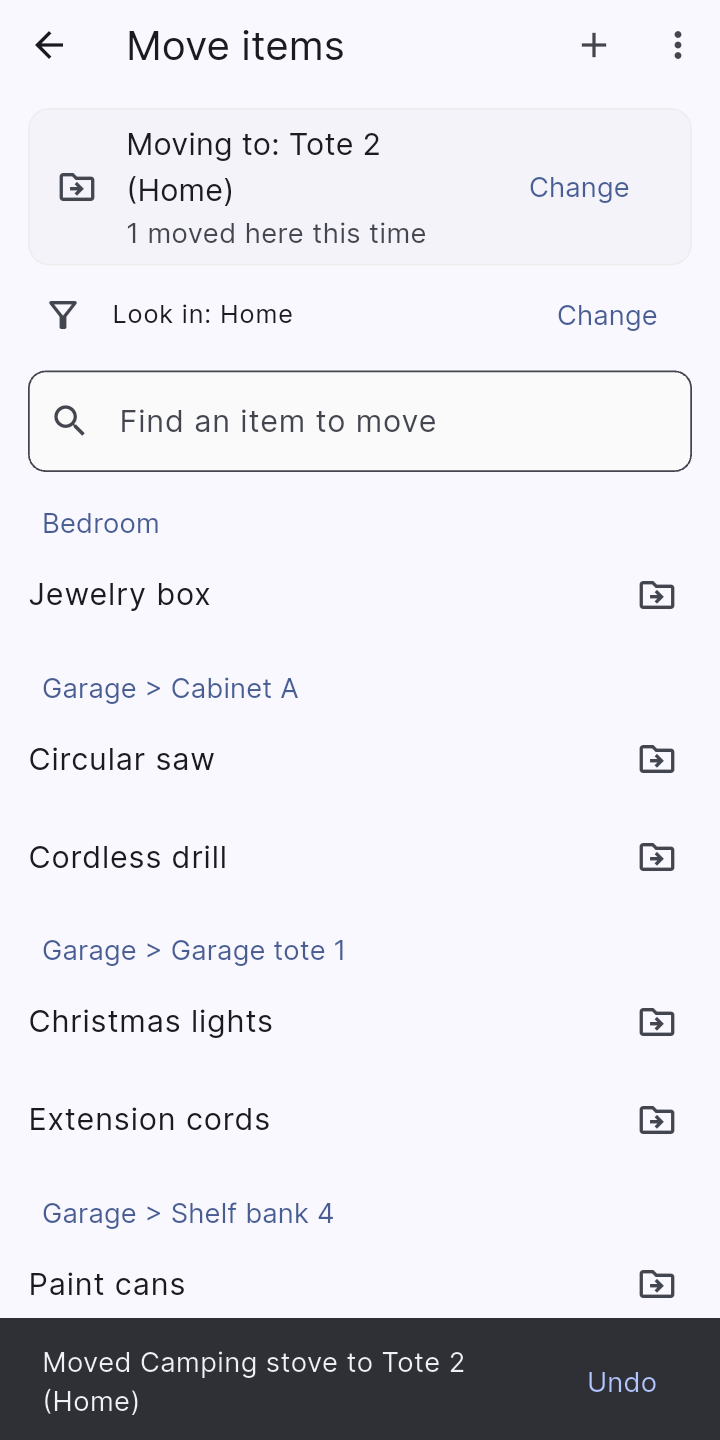
For a whole afternoon of packing or tidying, open the collection's menu > Advanced… > Move items: choose the destination once, then tap each item to send it there. Every move has an Undo.
Photos, serial numbers, history, files, tags and contacts all come along. The category is matched by name (and added if the other collection lacks it) and custom values by field name and type. Before it happens Stowed tells you what will not come along (a custom value with no matching field there) and what it will add, and Undo puts everything back exactly.
Found something that is not in the app yet? In Move items or Pack a box tap +, or type its name in the search box and tap Add “…”. Give it a name, how many and a photo, and it goes straight into the box or place you are filling. Save and add another keeps you going; More details opens the full editor.