Stowed User Manual, chapter 3 of 11
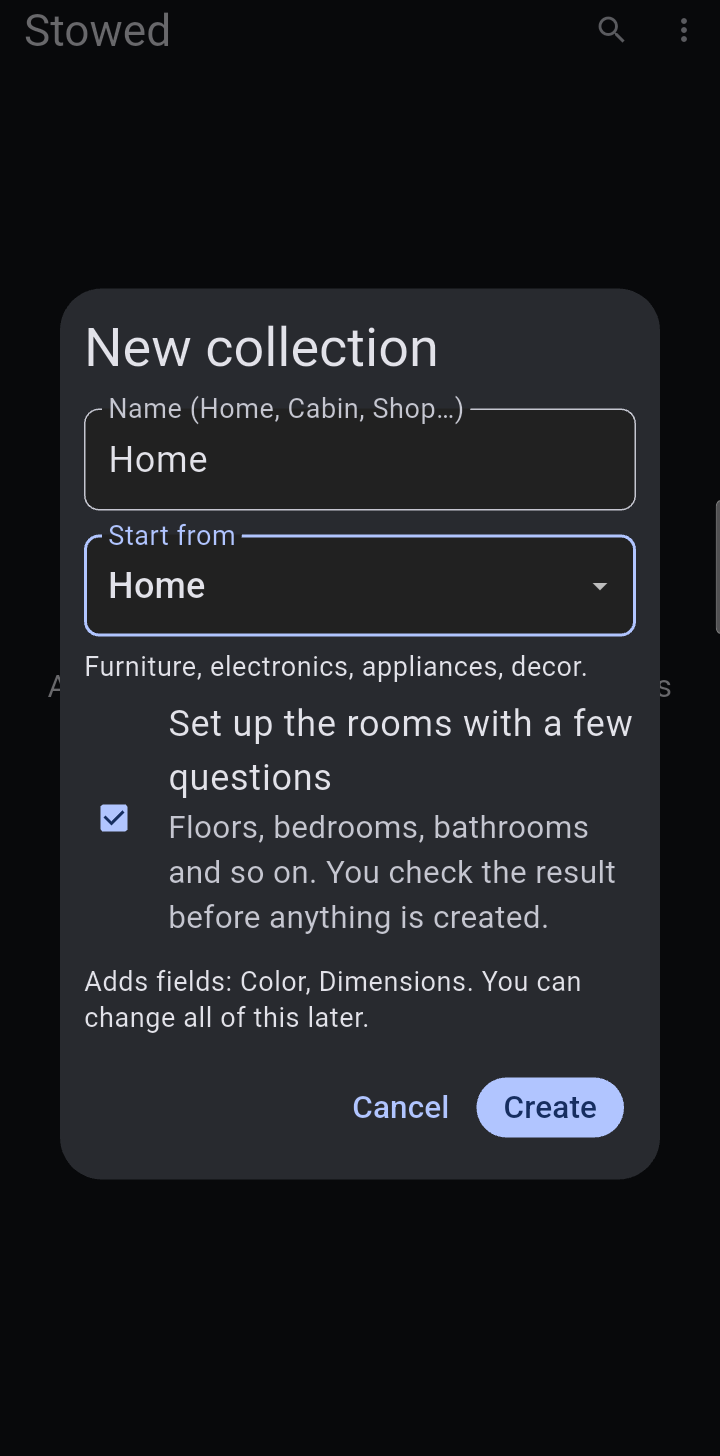
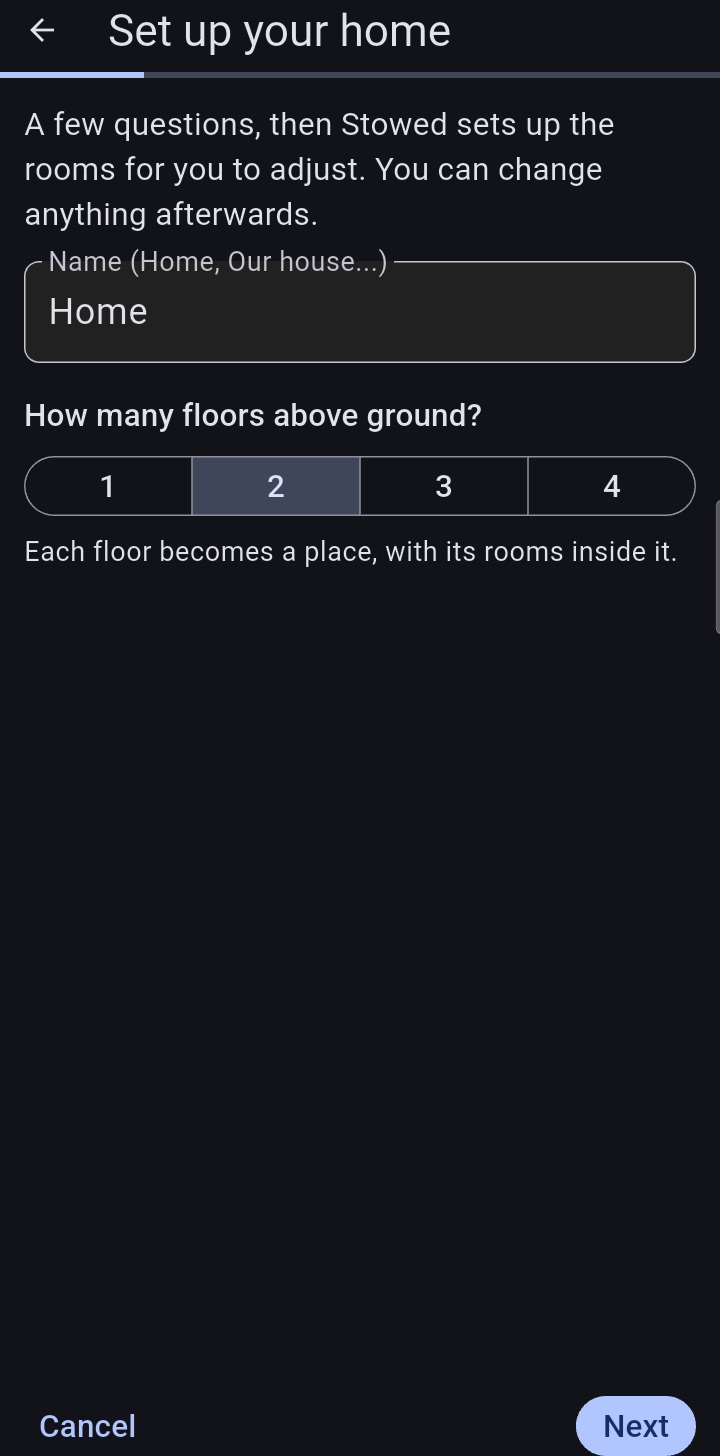
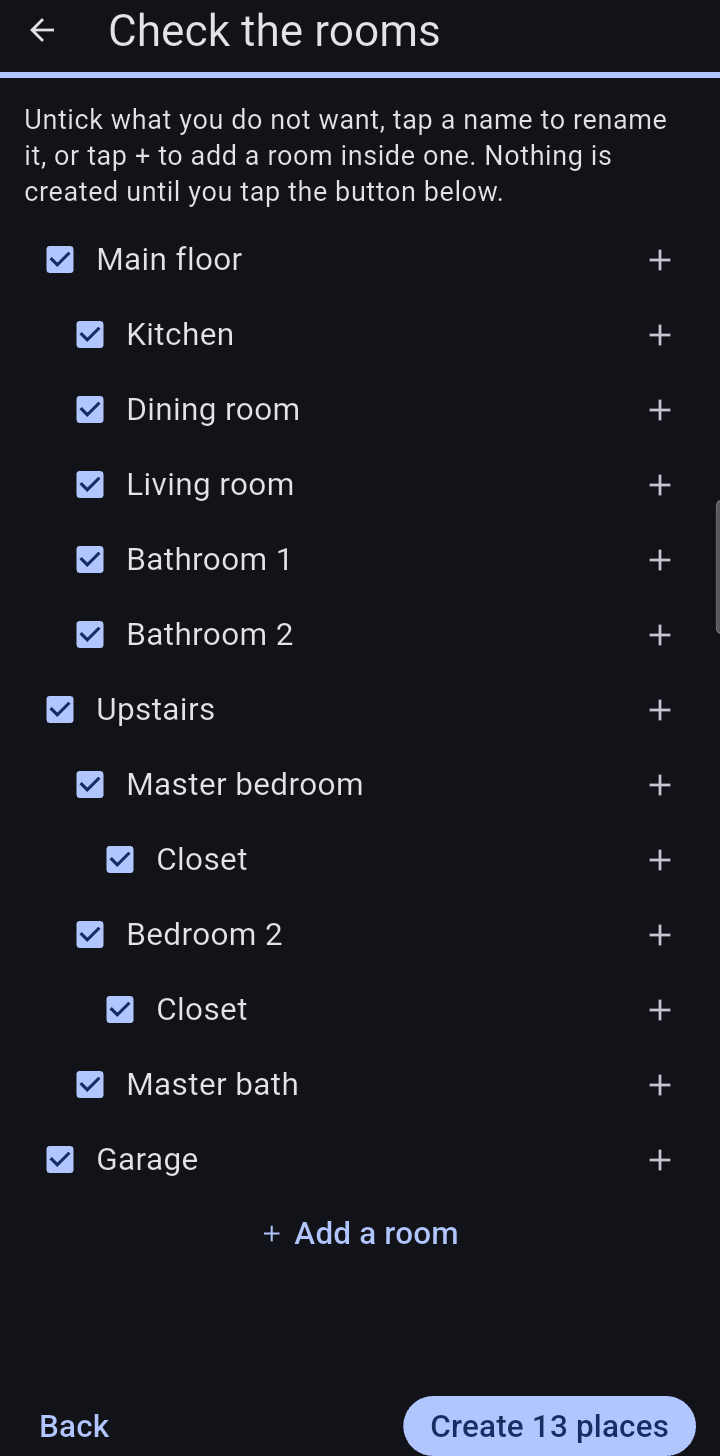
When you create a Home collection, tick Set up the rooms with a few questions. You say how many floors, then for each floor how many bedrooms and bathrooms and which other rooms it has (kitchen, dining room, living room and so on), then garages, basement, attic, shed, whether the master bedroom has its own bath and whether each bedroom has a closet. Stowed shows what it would create as a tree: untick what you do not want, tap a name to rename it, or add a room. Nothing is created until you tap the button. A one-story home has its rooms directly in the collection; a taller one has a place for each floor. An empty collection's menu also has Set up rooms.
Open a collection and use the three-dot menu > Add location; open a location and add another inside it to nest them. Each location shows how many items are in it and in everything beneath it. Press and hold a location (or use Edit this place…) to rename it, give it an icon and color, lock it, move it or delete it. Deleting a location never deletes its items: they move up one level to the place above (or to the top level).
In a deeply nested location, Back to in the menu takes you straight back out to the first location of the chain.
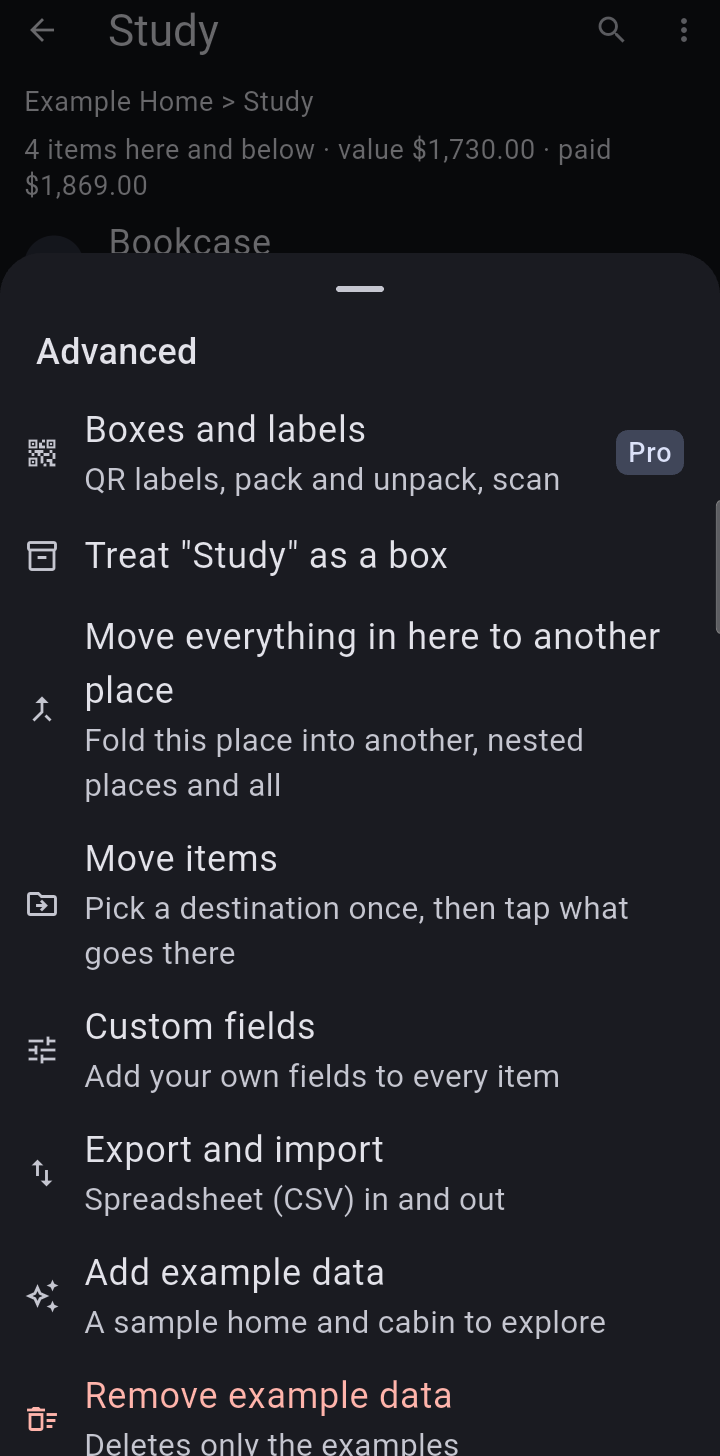
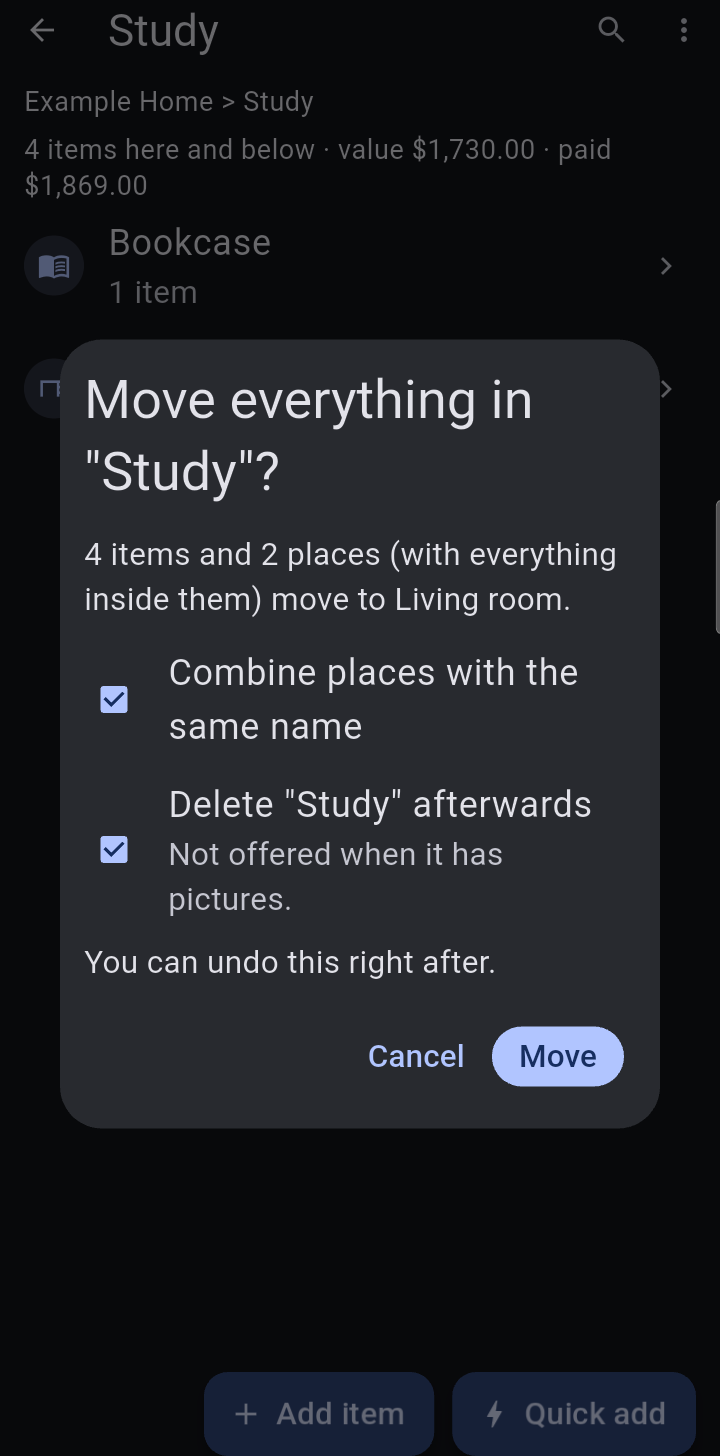
To fold one place into another, for example after two devices each made their own “Master bedroom”, open the place you want to empty, then the three-dot menu > Advanced… > Move everything in here to another place, and choose where it goes. Its items and the places inside it, with everything in them, move across. Stowed first says how many items and places will move. Combine places with the same name (on by default) joins places that have the same name on both sides, all the way down, so two Closets become one. Delete the emptied place afterwards removes the old one (it is not offered if the place has pictures). If the place you move out of is locked and the destination is not, you are told that what moves will no longer be locked. You can undo it right after. It works within one collection, and it is free.
A china cabinet is an item (it has a value, a category, tags) and also a place where china, silverware and vases are kept. Open the item, tap Edit and turn on This item can hold other things (or use the item's menu > Can hold other things). It then appears once in its room, like any item, with how many things are inside. Tap it to open what is inside; tap the i button for the item's own details, which also has a Contents line. Things you put inside show their place as, for example, “Dining room > China cabinet”. Moving or renaming the item carries its contents along. If you delete it, or turn the setting off, you choose whether what is inside moves up into the room or is deleted too. An item that holds things cannot be moved to another collection until what is inside is moved out.
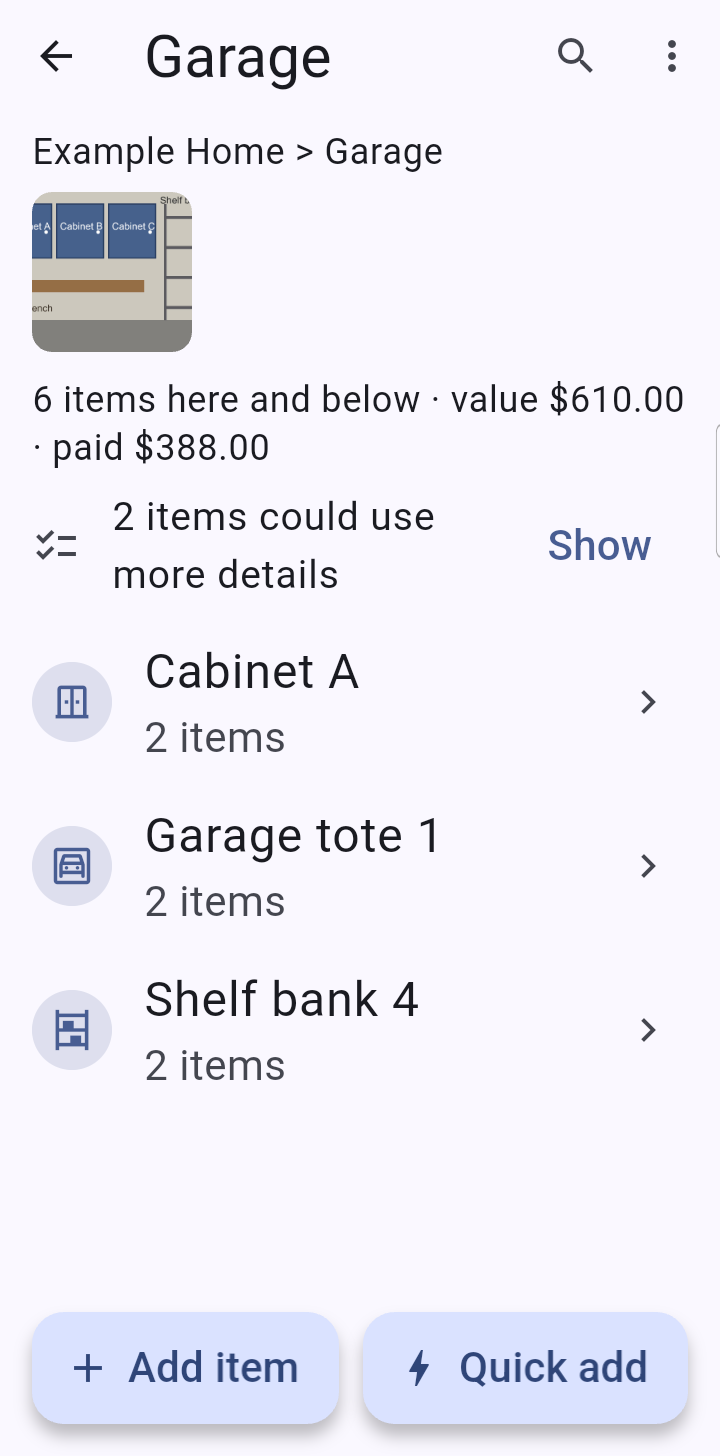
Open a location's menu > Pictures of this place (or long-press the location). With Stowed Pro you can add one or more pictures (a wall of cabinets, a bank of shelves) and write a caption on each, such as “Cabinet A is on the left, Shelf bank 4 on the right”. A small strip of the pictures shows at the top of the location, and tapping one opens it full size with its caption. Pictures you have added can always be viewed, captioned and removed, with or without Pro.
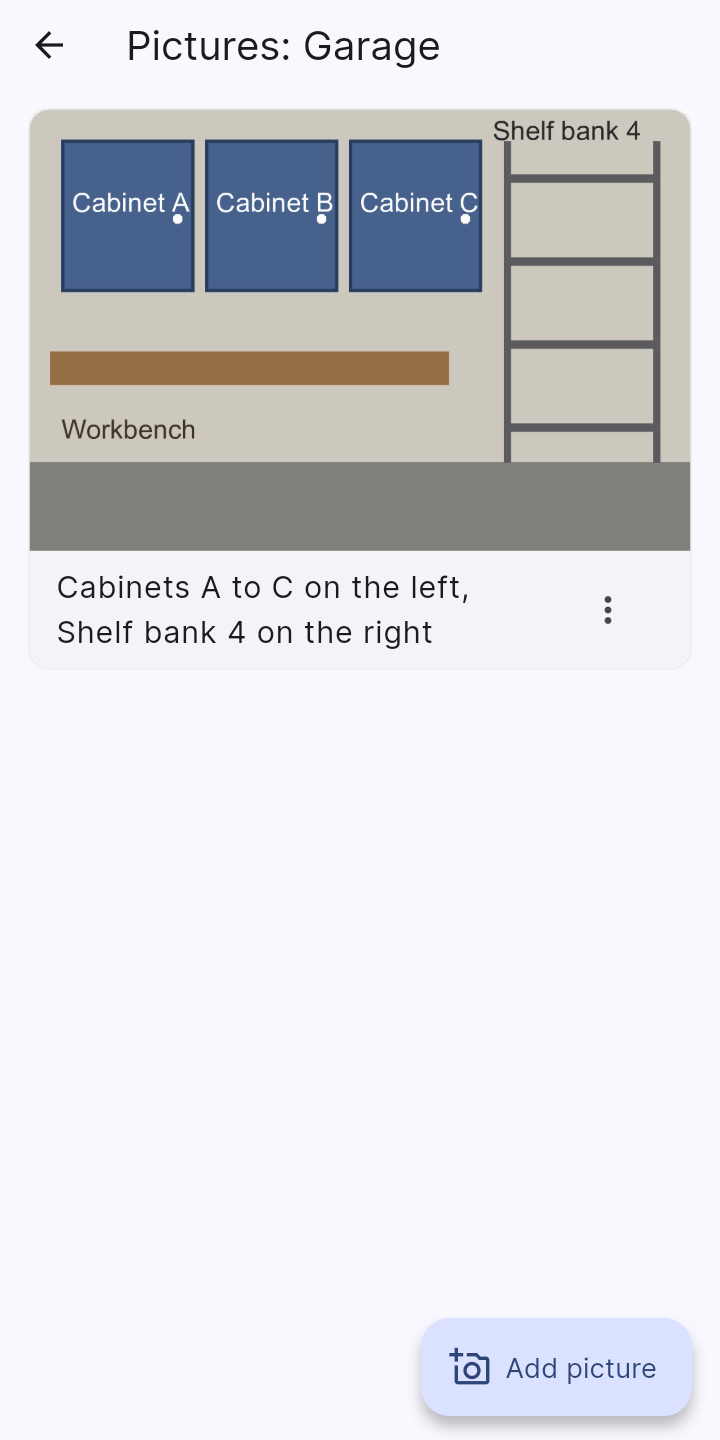
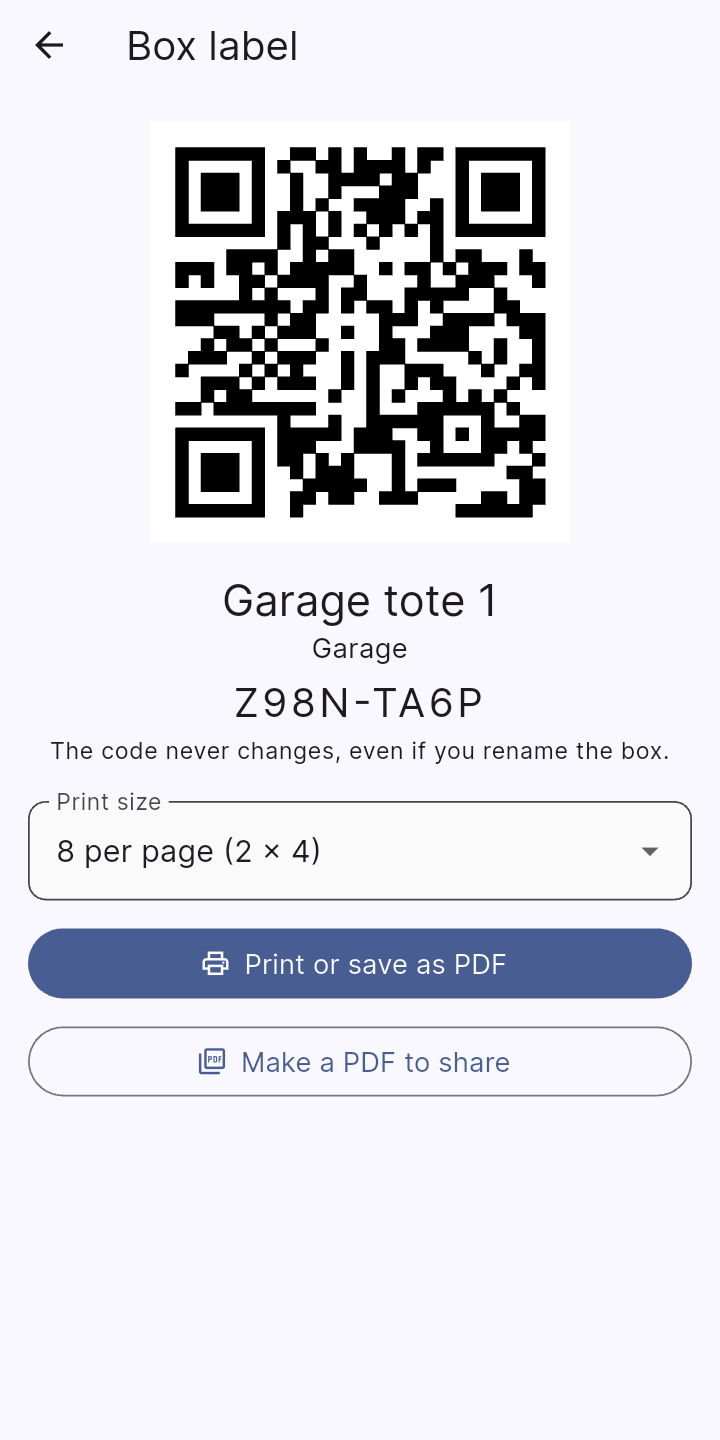
A box is just a location with a name you choose: Box 1, Tote 3, Container 7, or “Christmas lights”. Open the collection's menu > Advanced… > Boxes and labels. With Stowed Pro you can Make boxes in a batch (you pick the word, how many and where to start counting), then Print labels: each label has a QR code, the box's name in large type, where it is, and a short code you can read or type if the QR is ever scuffed. Labels print one per page, 8 per page or 30 per page, on plain paper or a sheet of address labels. Renaming a box never breaks its label, because the code behind it never changes. You can also treat any location as a box from Advanced… when it is open.
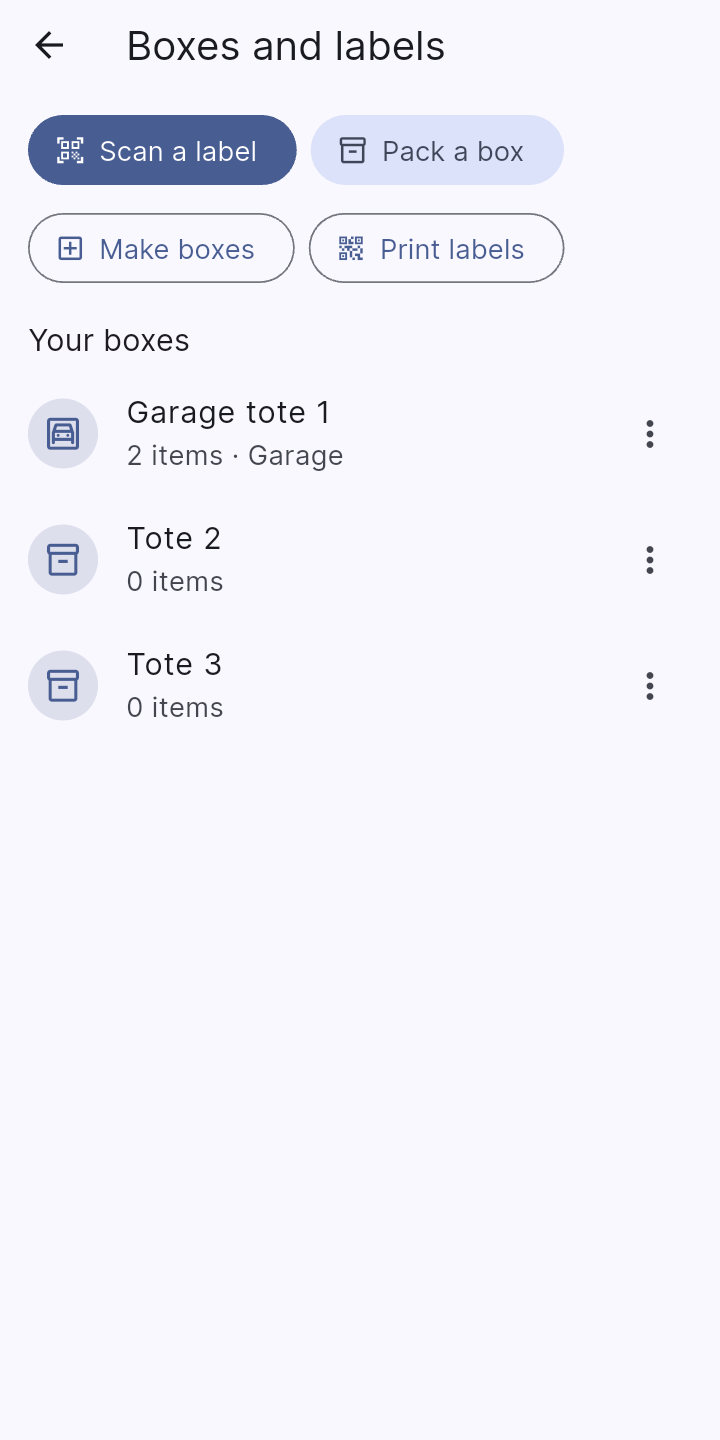
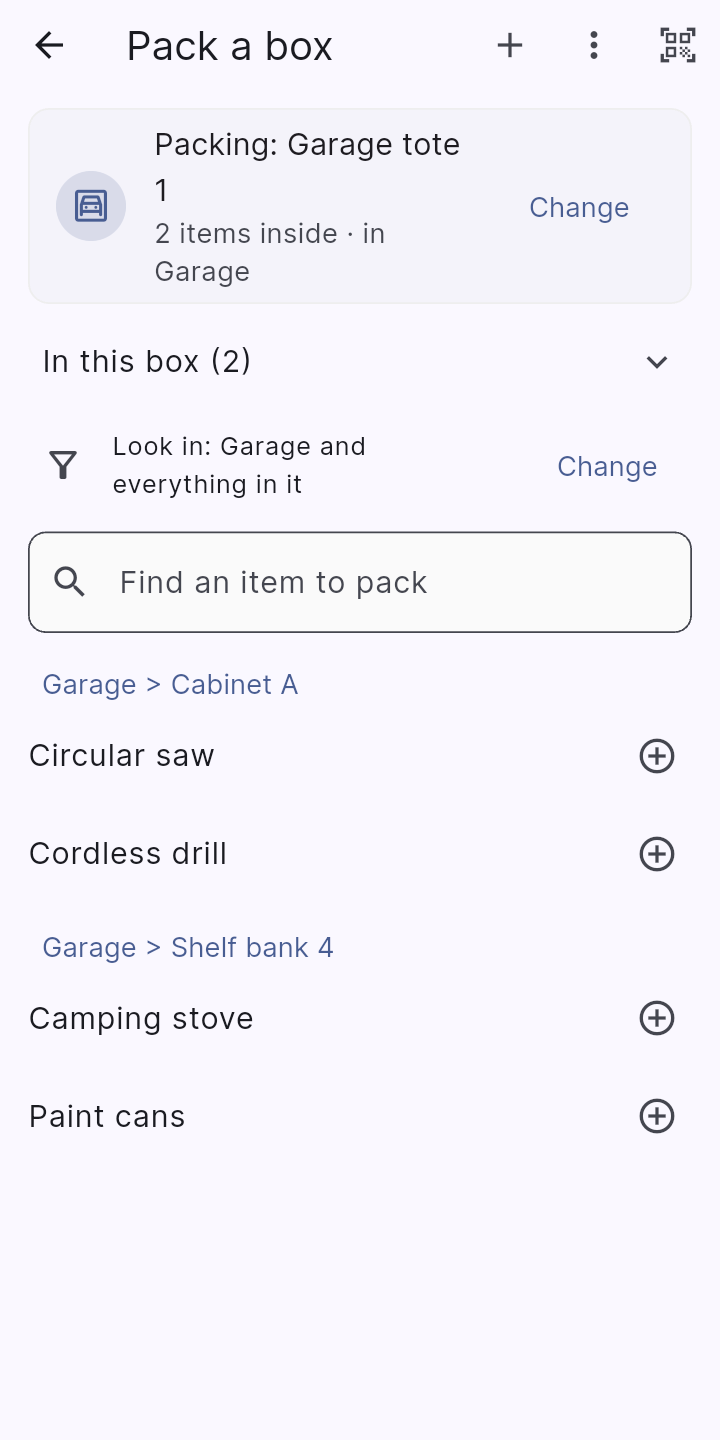
Pack a box: choose the box you are filling (the one you used last is always at the top), then tap items to put them in; a quick Undo appears each time. An item remembers the place it came from, so Unpack can put everything back where it lives, or send it to a place you choose. Scan a label (home menu or the Boxes screen) opens the box and shows everything inside. A locked box asks for the location password first.
On the Print box labels screen, under Use your own template, you can export the chosen boxes instead of printing a PDF. There are two choices.
Mail merge and the QR code. A spreadsheet cannot carry pictures that a merge will use, so the QR code has to be made from the QR text column. Avery Design & Print, Dymo Connect and Brother's editor can make a QR code from a merged column, so point theirs at QR text. Word for Windows has a barcode field that does the same: in your merge document press Ctrl+F9 for field braces and type DISPLAYBARCODE "{ MERGEFIELD QR_text }" QR \q 3, then update the fields (Word shows column names with underscores in place of spaces). We have not been able to try that field, so if it is not available, or you use LibreOffice or another word processor, use the editable document instead (it has been checked in LibreOffice and SoftMaker TextMaker).
Boxes that are hidden by a lock are left out unless locked places are showing, and a box that had no permanent code gets one, as it does when you print.
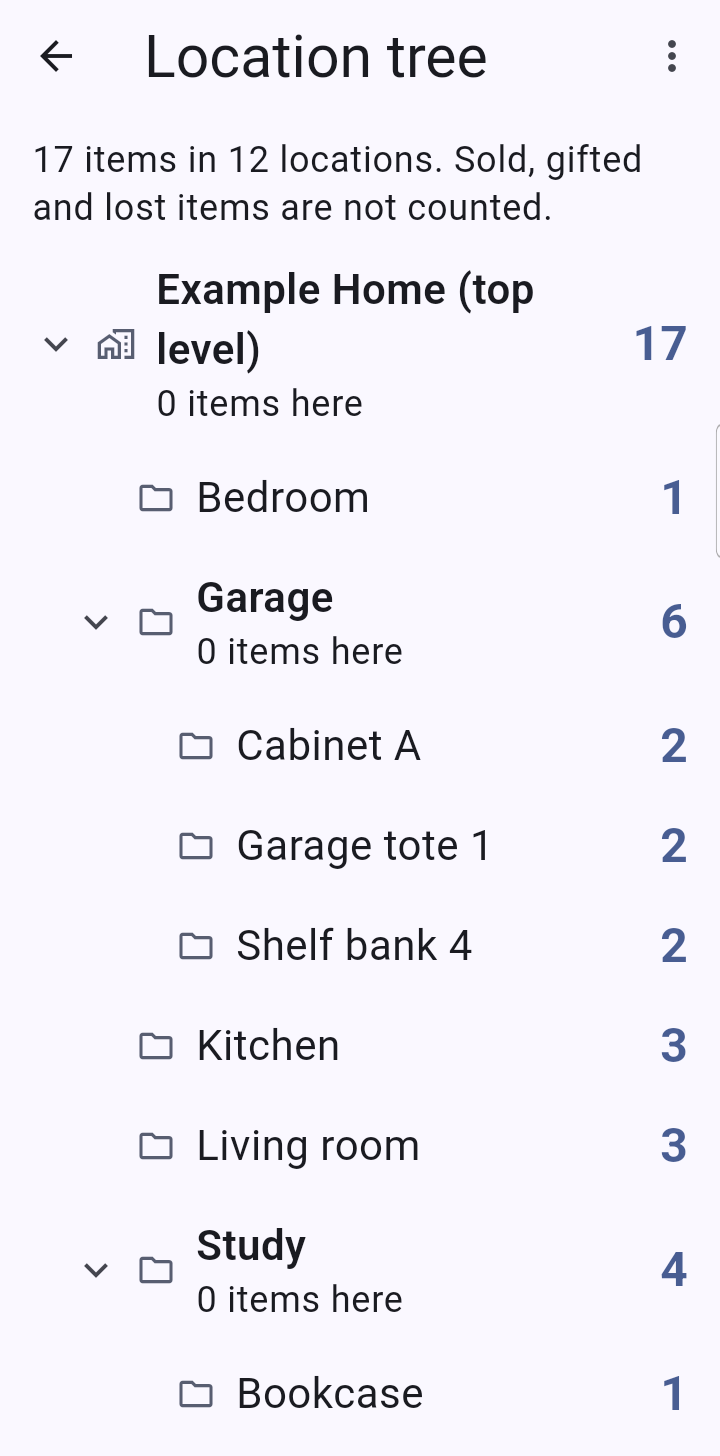
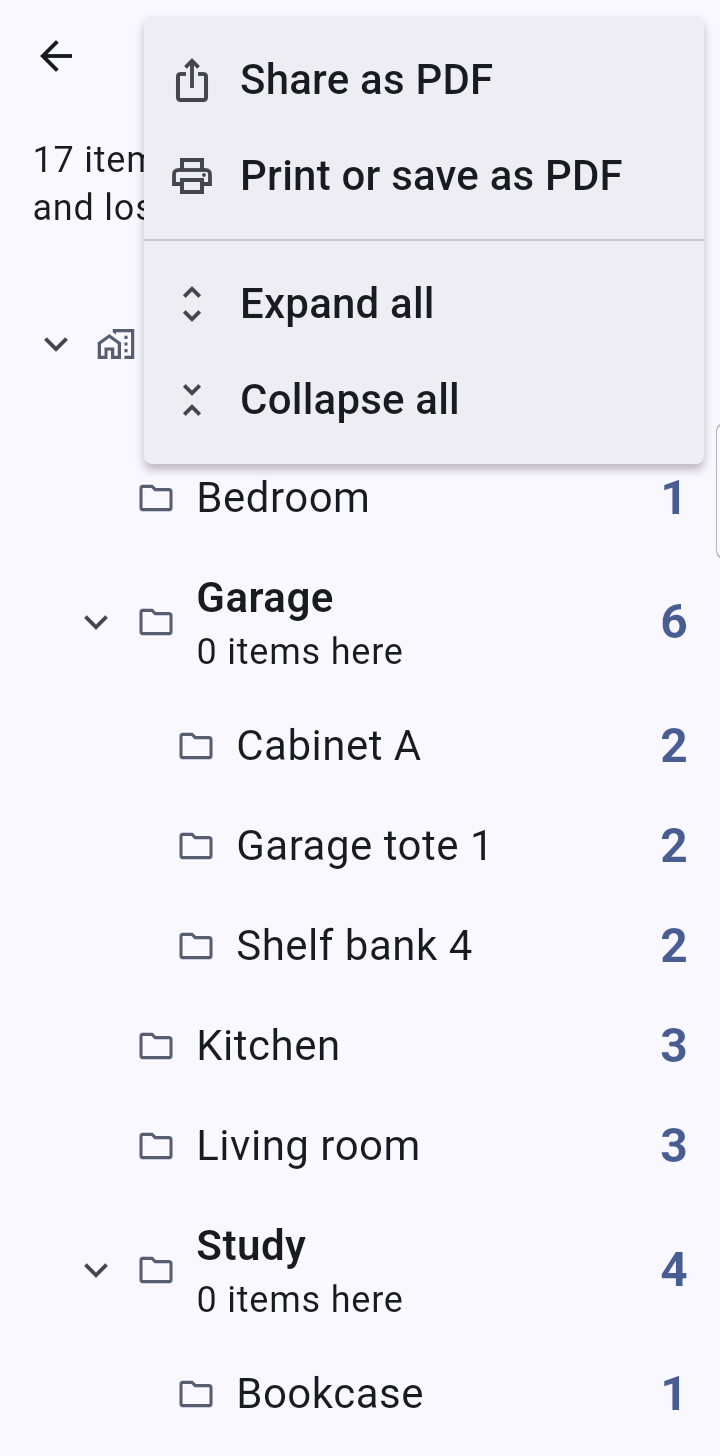
With Pro, open a place's menu (or the collection's) > Location tree to see that place and everything inside it as a tree, with the number of items in each place and in total. It works from the top of a collection as well as from any location. Tap a place to open it, or the arrow beside it to fold it; the screen's menu can expand or collapse everything.
The menu can Share as PDF or Print or save as PDF: you get one indented table, Here (items directly in that place) and Total (including everything inside it), laid out to print on one or more pages. Locked places and items stay out until they are showing, and sold, gifted and lost items are not counted.