Stowed User Manual, chapter 2 of 11
← Getting startedContentsPlaces, boxes and labels →
Tap Add item (or open an item and choose Edit). The editor has four tabs:
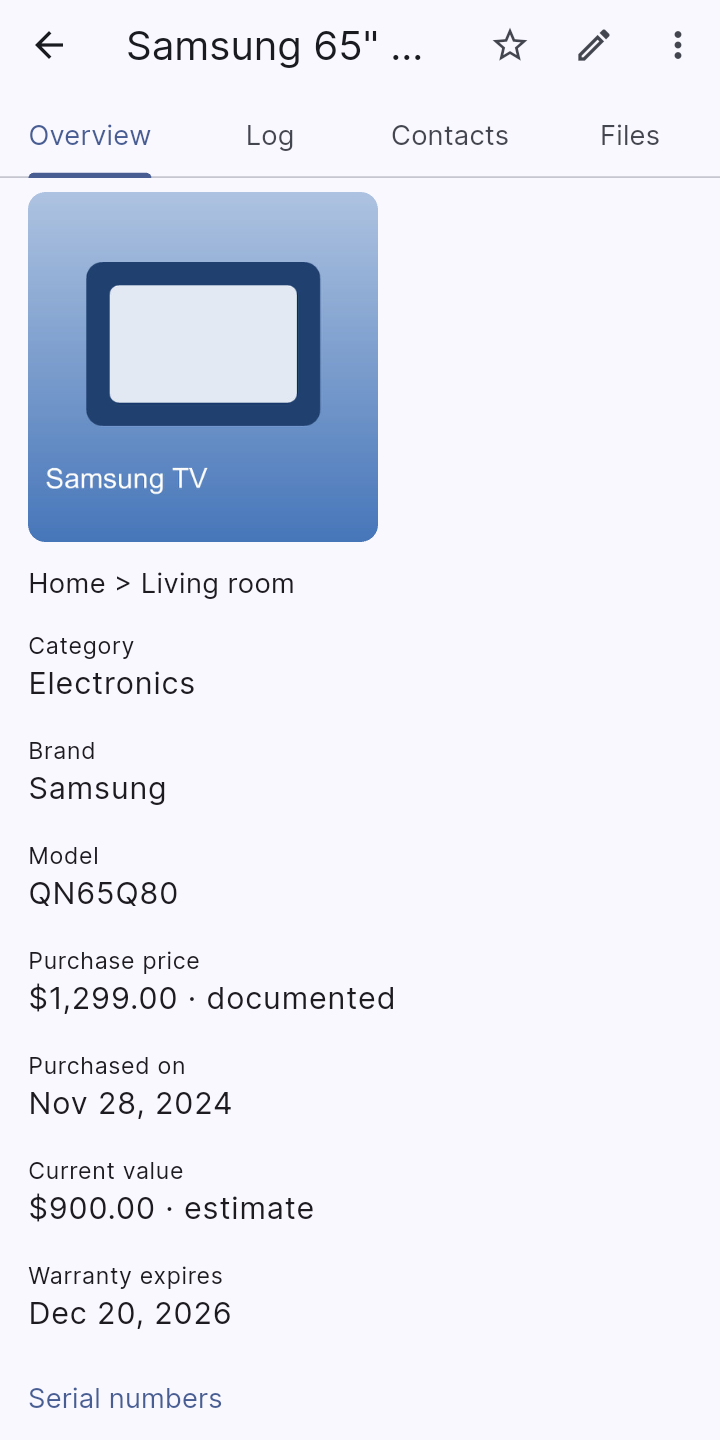
Amounts are for one item; totals multiply by the quantity. Under the price and the value you can mark how sure you are: Documented (a receipt, invoice or appraisal), Estimate, or Rough guess. Tap the chosen one again to clear it. Reports show this beside the amount, which matters if you ever make an insurance claim.
Photos can come from the camera, your gallery or Google Drive. The first photo is the cover. If one is sideways or upside down, tap its thumbnail in the item editor and choose Rotate left or Rotate right, or open a saved photo full screen and use the rotate buttons at the top. Rotating works the same for pictures of a place and for photos on a log entry. It is permanent: the picture itself is rewritten, so reports and backups show it the right way up.
An item is In use by default. If you sell, give away or lose it, change its status instead of deleting it: the record stays, but it drops out of lists, counts and totals. Sold, gifted and lost items are hidden unless you choose Show sold, gifted, lost in a place's menu.
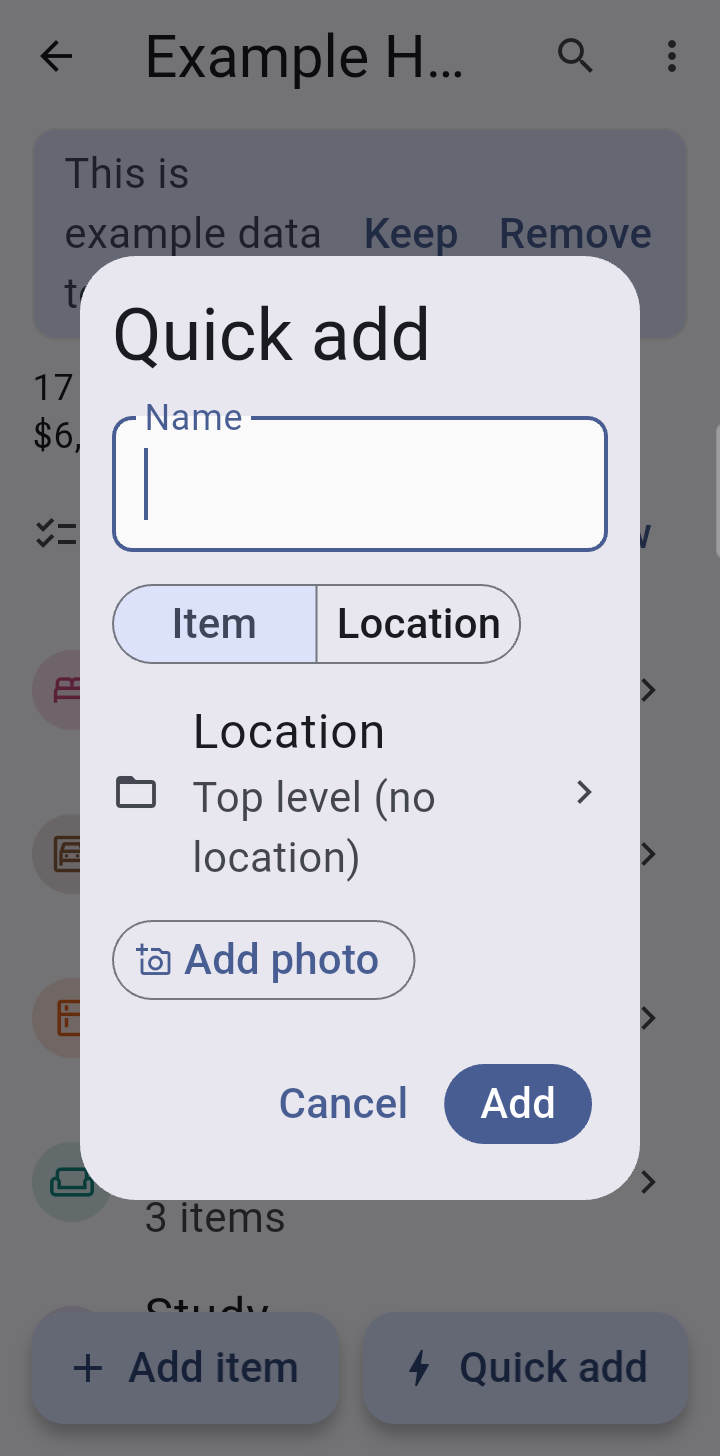
Beside Add item there is a Quick add button: type a name, choose Item or Location and tap Add. For an item you can also choose an optional Category and tap Add photo, rotate it if it is sideways, and it is saved with the item. It lands in the place you are looking at, or in another place if you tap Location in the dialog and choose one. That choice, and whether you were adding an Item or a Location, stays for the next Quick adds until you open a different place or restart the app. Locked places are offered only while they are showing. It is a fast way to get a room's contents in and fill in the details later.
An item's menu has Duplicate. It opens a new item that starts as a copy (brand, model, category, place, quantity, price, value, warranty, tags, custom values and notes). The name, photos, serial numbers, registry number and appraisal are left blank because they belong to one particular object. Give it a name, change what differs, and save.
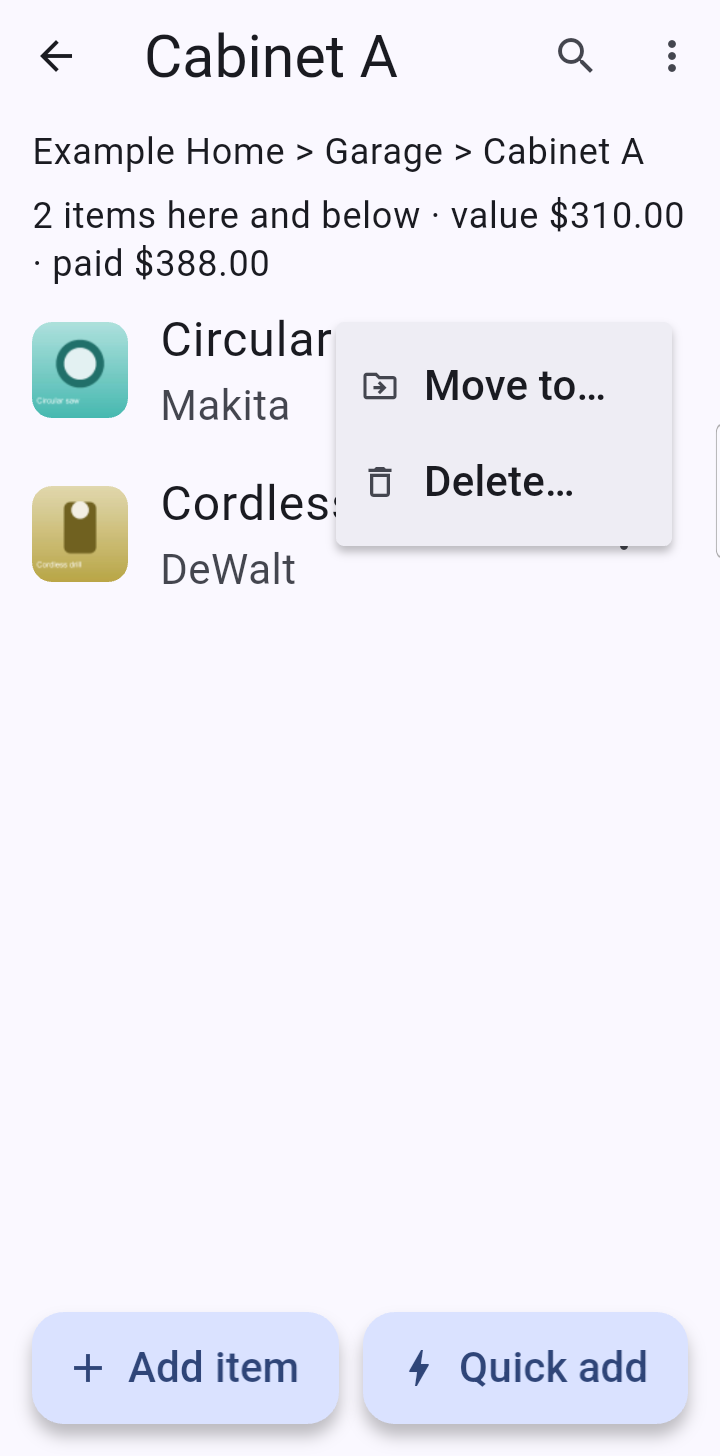
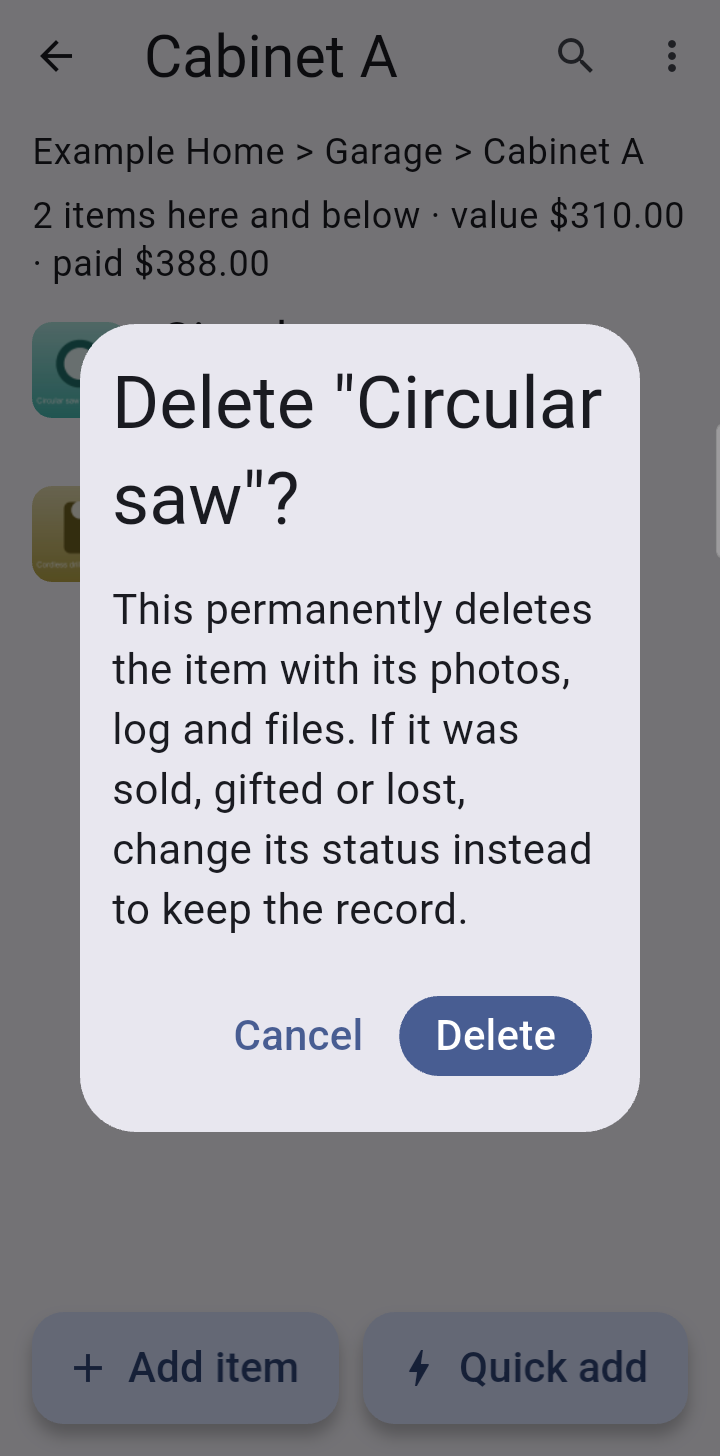
Each item in a place has a three-dot menu with Move to… and Delete…. Delete always asks first and says what goes with the item (its photos, log and files). If it was sold, gifted or lost, change its status instead to keep the record. See also Moving items.
A place's menu > Sort items orders the list by name, brand, category, recently changed, value, or any custom field. Each item shows its category. Where a place has both locations and items, All / Items / Locations above the list shows just one kind (it resets when you leave). The row you last opened stays highlighted, so you can find your place again when you come back to the list.
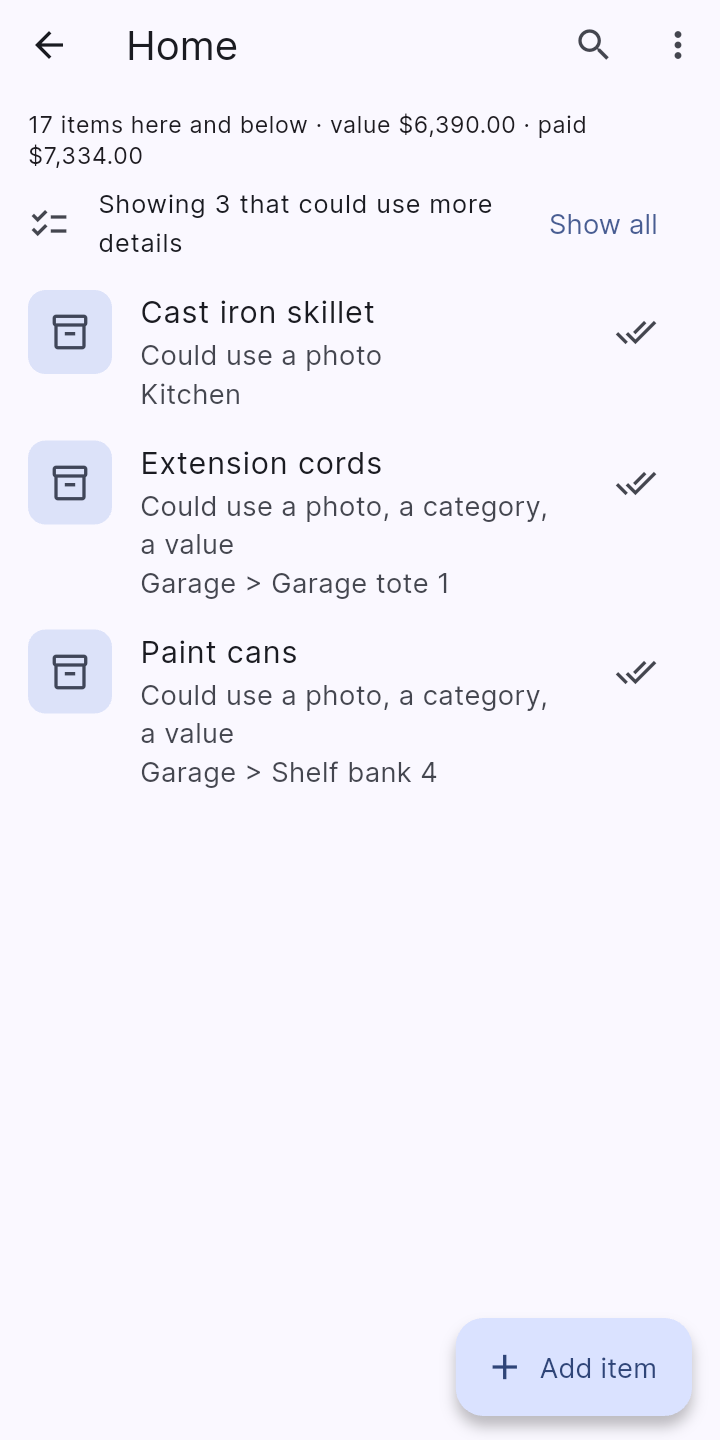
A collection or location says how many items are missing a photo, a category, a value, or a place (an item at the top level with no location yet) and, for valuable things with a brand or model, a serial number or purchase details. Tap Show to see just those; press and hold to select several, then Move to… to place them together.
A good way to enter a theme first and place it later: use Quick add with the Location set to Top level (no location), then move the items to where they really are.
When there really is nothing more to add (a roll of tape), tap Nothing more to add on the item, or select several and tap the double tick. Nothing here is a warning; it is only a short list for when you have a spare minute.