Stowed keeps a private record of what you own and where it is. Everything stays on your phone: there is no account and nothing is sent anywhere.
This chapter is the whole idea in a few minutes; the other chapters go deeper.
The three building blocks
A collection is a separate inventory, such as Home, Cabin, Shop or Storage Unit. Collections never mix: each has its own locations, categories and custom fields.
A location is a place inside a collection: a room, a shelf, a cabinet, a box. Locations nest, so a Garage can hold Shelf 2, which holds Tote 4. A box is simply a location you treat as one (see Places, boxes and labels).
An item is a thing you own. It can sit in any location, or in none yet.
Your first ten minutes
On the home screen tap Collection and give it a name. You can start from a template (it comes with useful custom fields) or from nothing. For a Home, tick Set up the rooms with a few questions and Stowed builds the rooms for you (see Places, boxes and labels).
Open the collection. Use the three-dot menu > Add location to add a room, then open that room and add shelves or boxes inside it.
Tap Add item for a full entry, or Quick add to get a name in fast and fill in the details later. Quick add can take a photo as well.
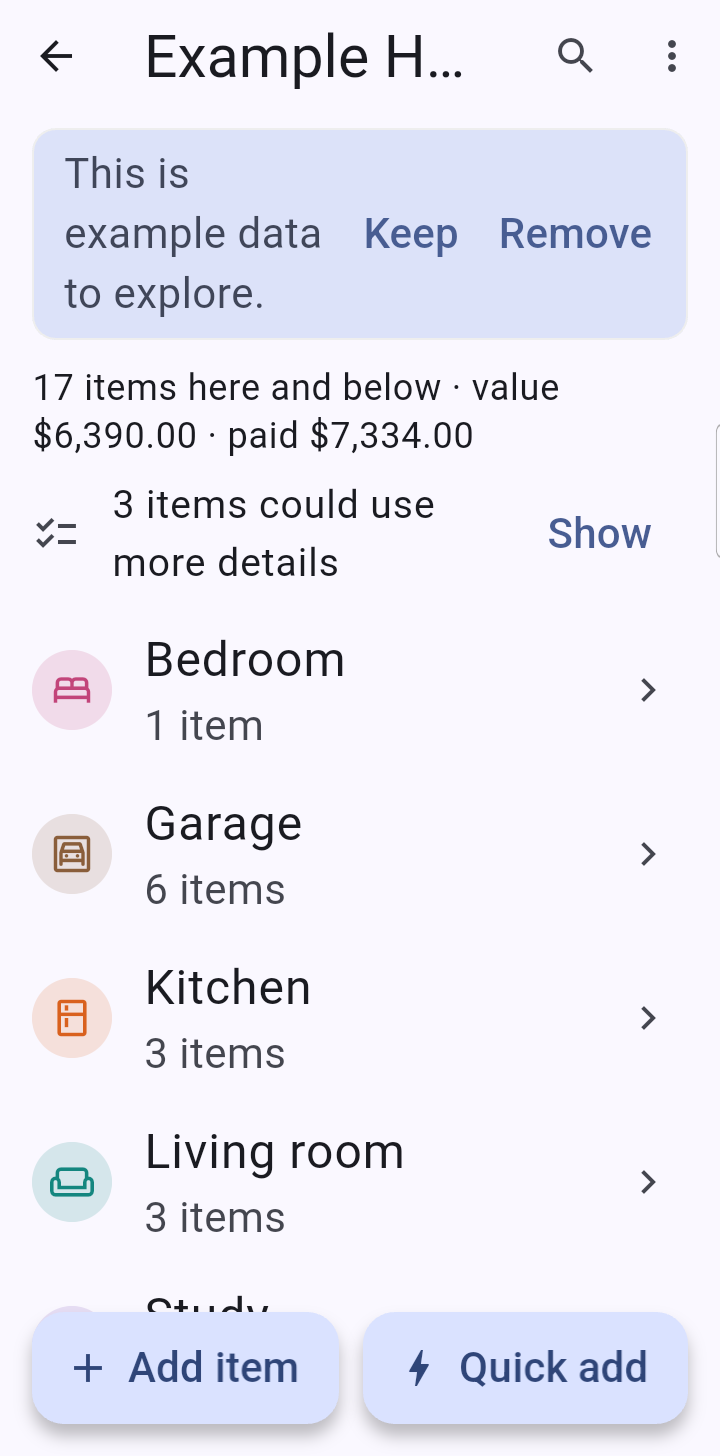
Add a photo and a value to your most valuable things first. The could use more details line at the top of a collection tells you what is still missing.
Make a backup (home menu > Backup and restore) as soon as you have entered something you would hate to lose. See Backup and restore.
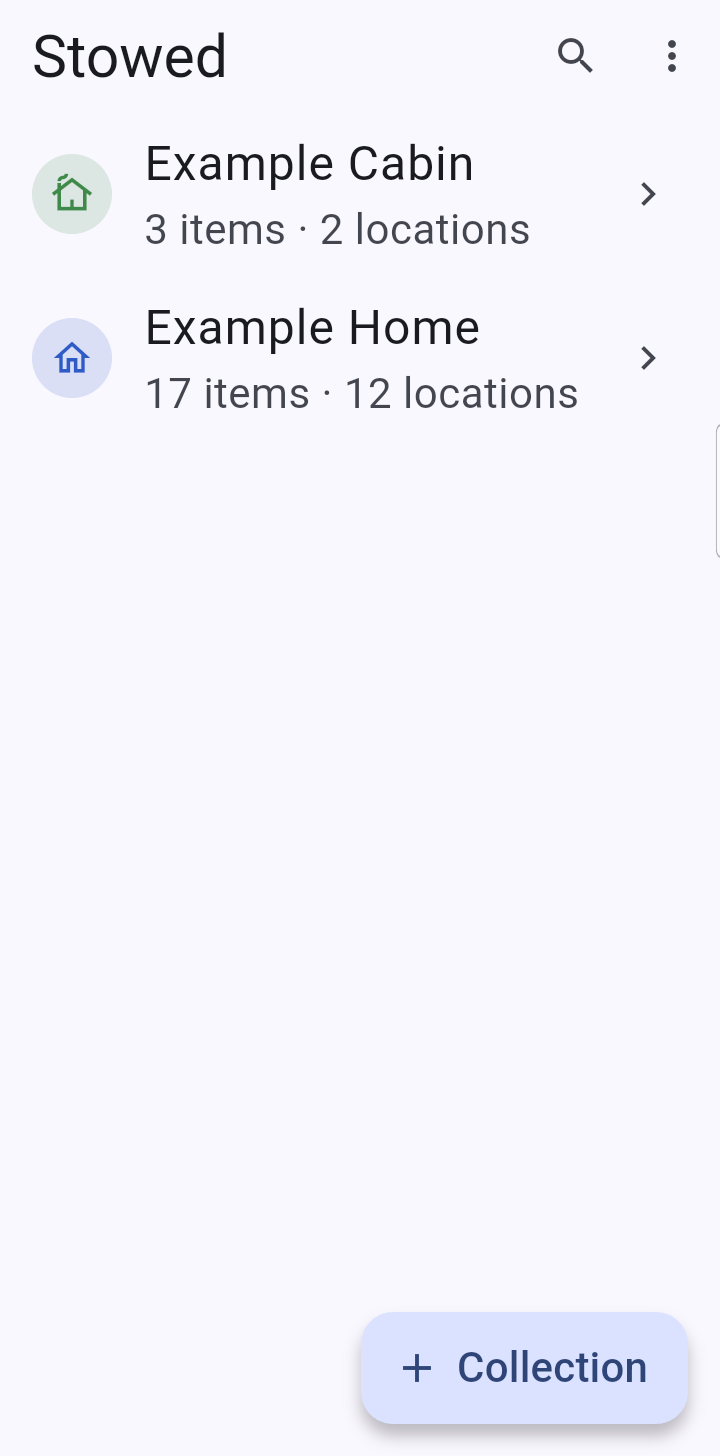
Want to look around first? On an empty home screen tap Add example data to get a sample home and cabin (Example Home and Example Cabin) with items, pictures, boxes and history.
Nothing in them can send you a reminder. Tap Remove on the banner at the top of an example collection to delete them both, or delete them like any other collection.
You can bring them back from a collection's menu > Advanced… > Add example data.
The home screen lists your collections.Inside a collection: its locations, totals, and what could use more details.
Finding your way around
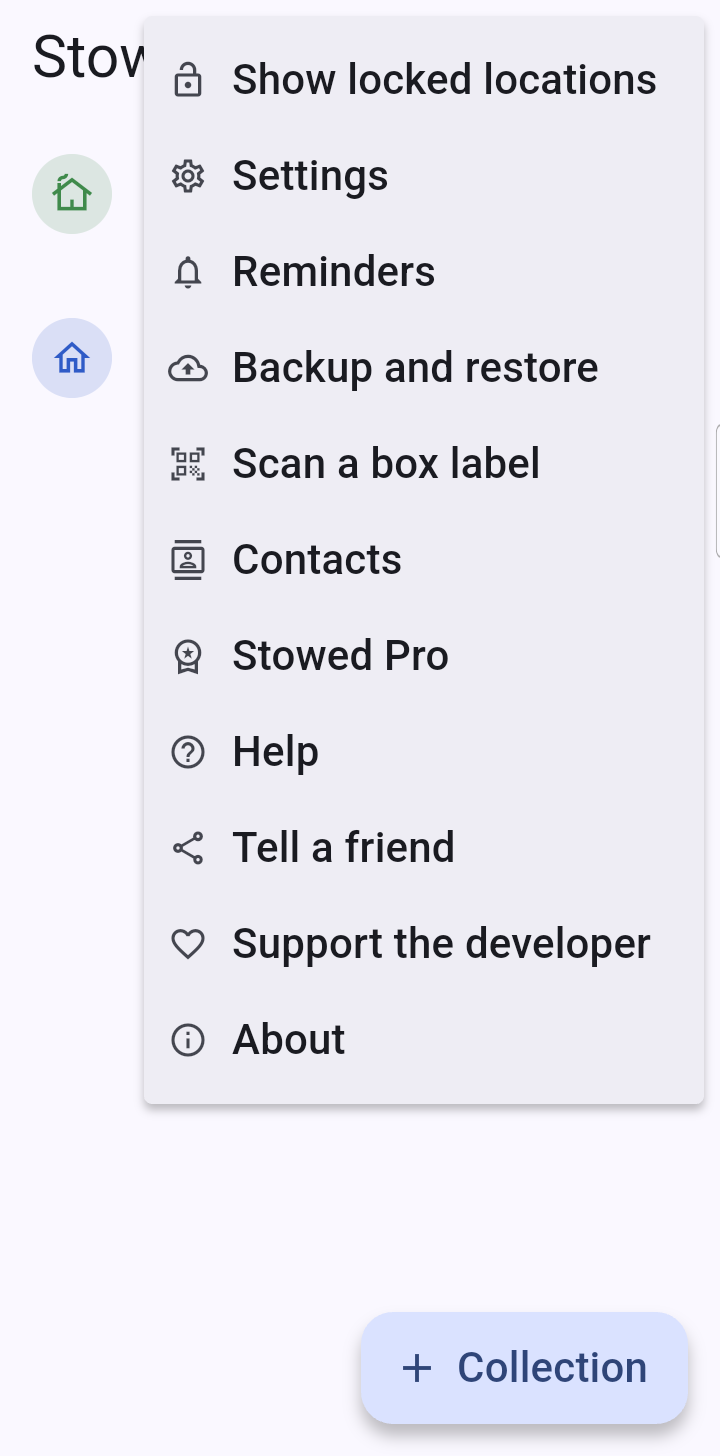
The home menu (three dots, top right) has, in order: Show or hide locked locations, Settings, Reminders, Backup and restore, Scan a box label,
Contacts, Stowed Pro, Help, Tell a friend, Support the developer and About.
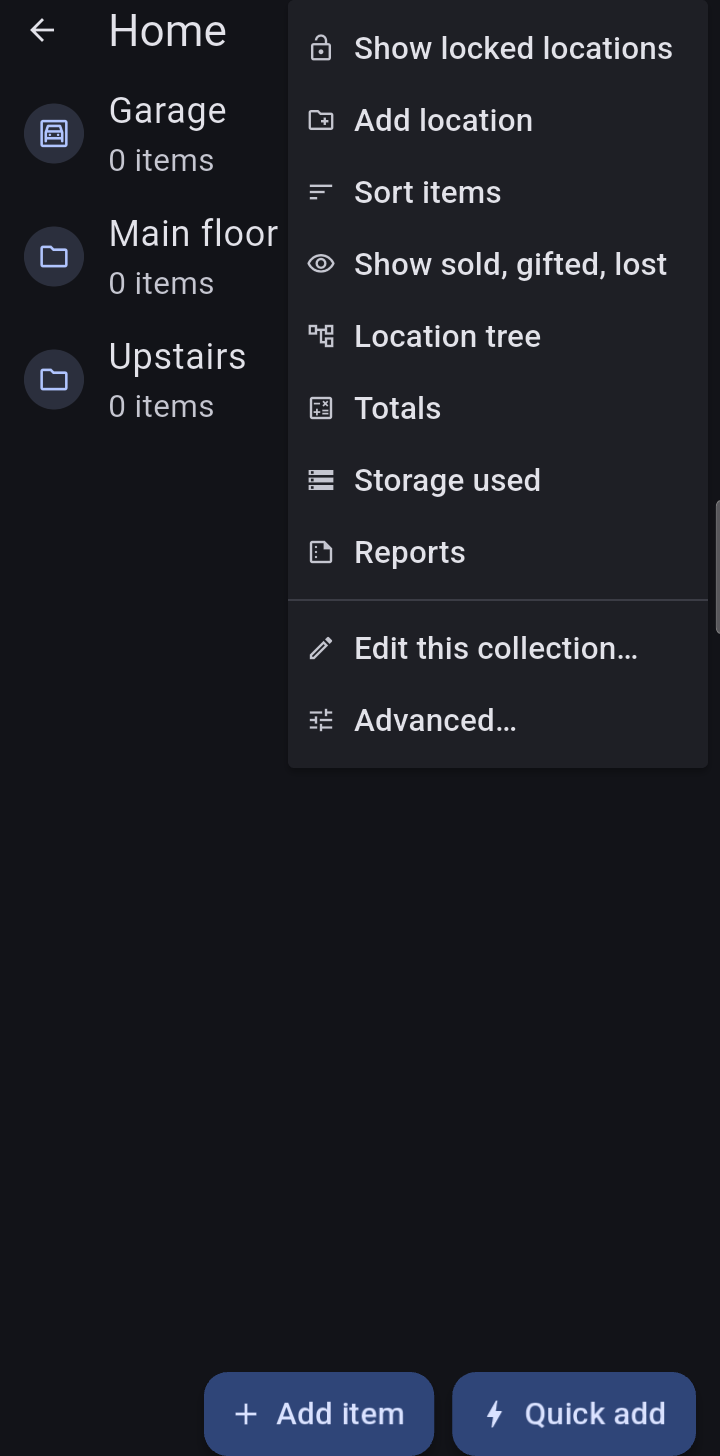
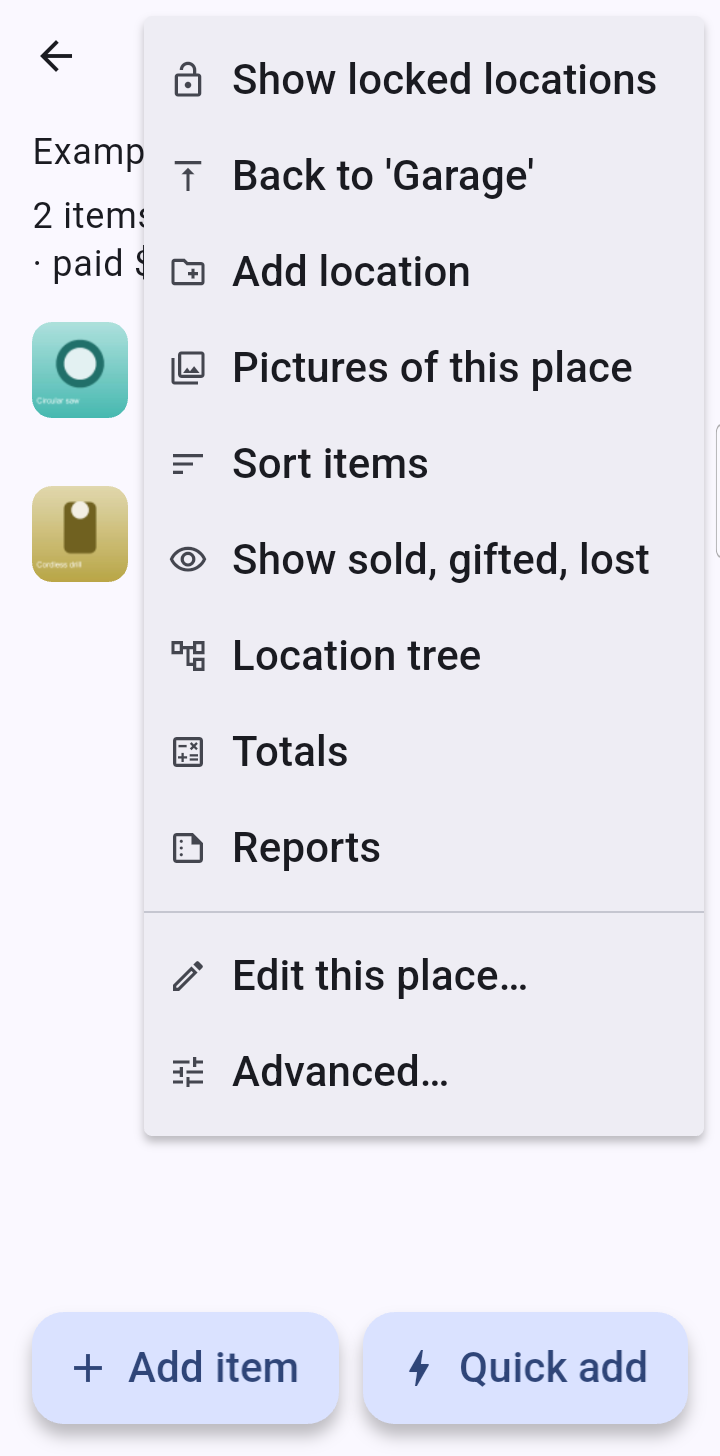
Inside a collection or location, the three-dot menu holds the actions for that place: add a location, pictures of this place, sort items, show or hide sold items, totals, the location tree,
reports, Edit this place… and Advanced… (custom fields, boxes and labels, move mode, export and import, example data).
In a deeply nested location the menu also offers Back to the first location of the chain, to get straight out in one tap.
To rename, recolor, lock, move or delete a location or collection, press and hold it in the list, or use Edit this place… in its menu.
The home menu.A collection's menu.In a nested location: Back to the first location.